> ## Documentation Index
> Fetch the complete documentation index at: https://docs.meteora.ag/llms.txt
> Use this file to discover all available pages before exploring further.
# DAMM v2 Pool Detail
> Learn how to use DAMM v2 on Meteora, including navigating pool pages, understanding pool metrics and fees, adding or withdrawing liquidity, locking liquidity, and managing position NFTs.
## Navigating DAMM v2 pools
DAMM v2, or Dynamic Automated Market Maker v2, builds upon the original DAMM, to provide a powerful, yet hassle-free way to add liquidity and earn fees on Solana.
[DAMM v2](https://meteoraag.medium.com/dynamic-amm-v2-helping-lps-and-launches-win-c56128c883ad) allows you to deposit tokens into a pool, which are then used as liquidity for traders, bots, and aggregators to swap tokens, earning you fees with every trade. But it is much more configurable than your typical AMM, with features tailored for a wide variety of liquidity providers, token launches, and launchpads.
**Features for LPs include:**
Supports a wide range of SPL tokens and select Token 2022 extensions, letting you provide liquidity for more token types.
Dynamic fees boost the fees you earn during periods of high market volatility, helping LPs maximize returns when trading activity increases.
Advanced anti-sniper tools, such as Time Scheduler, Market Cap Scheduler, and Rate Limiter, can adjust fees around launch conditions to make opportunistic trading more expensive.
**LPs also have:**
Choose to receive your liquidity provider fees directly in a quote token like USDC or SOL, instead of receiving fees in both tokens from the pool pair.
Lock your memecoin liquidity with a customizable vesting period or even permanently lock it, while still being able to claim your earned fees.
Effortlessly transfer your liquidity position to another person by simply sending the NFT that represents your LP position.
**Token creators can even:**
Launch a new pool using just your token, without needing USDC or other stablecoins.
Set a specific future time when pool trading should be enabled, allowing for launches, announcements, or fair trading starts.
Open a pool with a fixed price range to provide higher capital efficiency, similar to Uniswap v3-style concentrated liquidity.
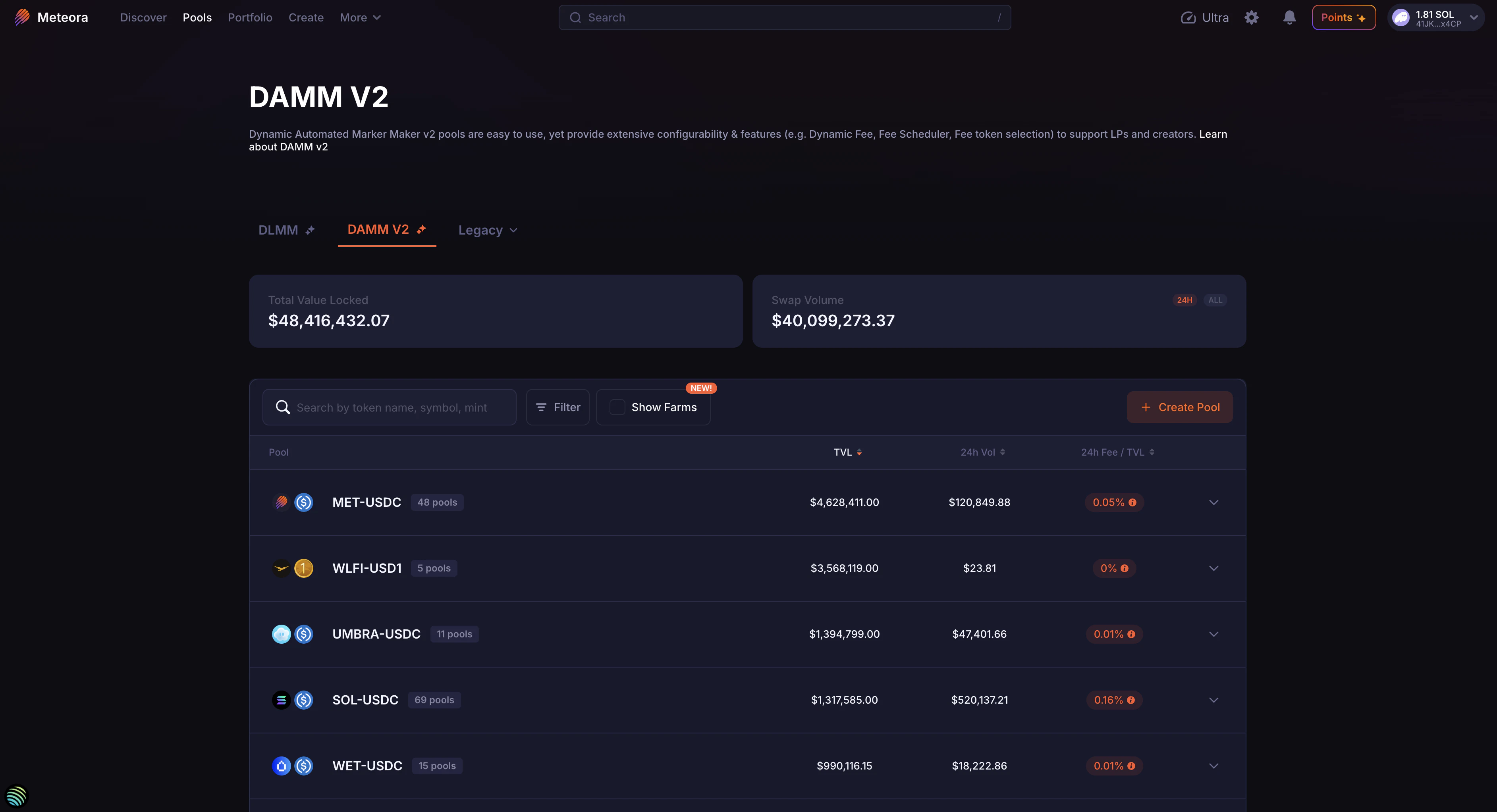
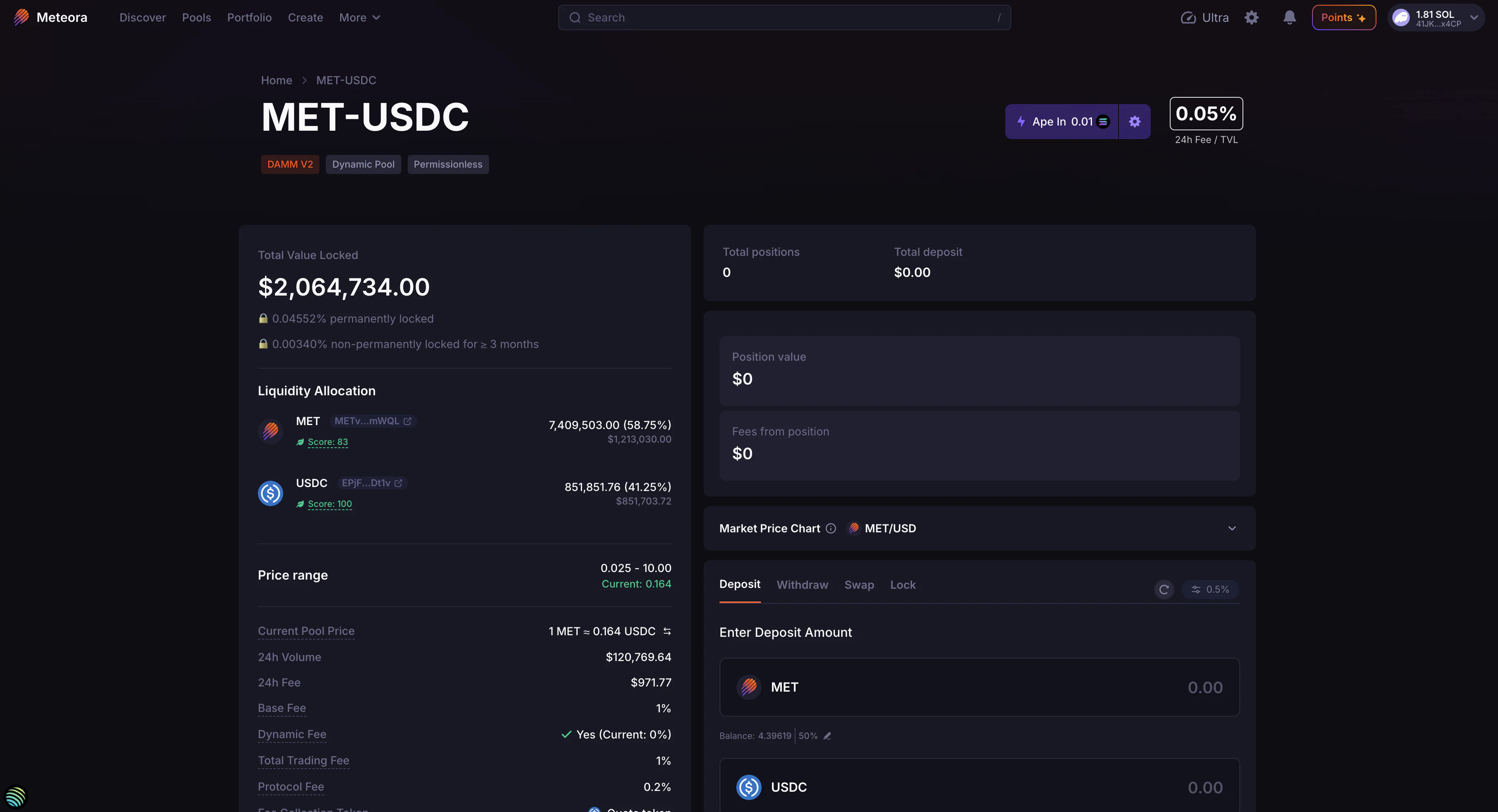
On the Pool List page, once you’ve selected the token pair and DAMM v2 pool you’d like to add liquidity into, click on it and you would enter the specific pool’s detail page.
To illustrate the various features of DAMM v2, we will be referring to a few pools in this guide, for example [SOL-USDC](https://app.meteora.ag/dammv2/8Pm2kZpnxD3hoMmt4bjStX2Pw2Z9abpbHzZxMPqxPmie), [URANUS-USDC](https://app.meteora.ag/dammv2/7ccKzmrXBpFHwyZGPqPuKL6bEyWAETSnHwnWe3jEneVc), [WLFI-USD1](https://app.meteora.ag/dammv2/F6L1RKAKwNuWwyCwweja6uxAkRv41XFTRWmg8tKGkn83), and [ICM-SOL](https://app.meteora.ag/dammv2/FLuXAxxqMbLkKHWHHCAiX2ub8qZuoC9bb35bSRDNDMo2).
### Total Value Locked
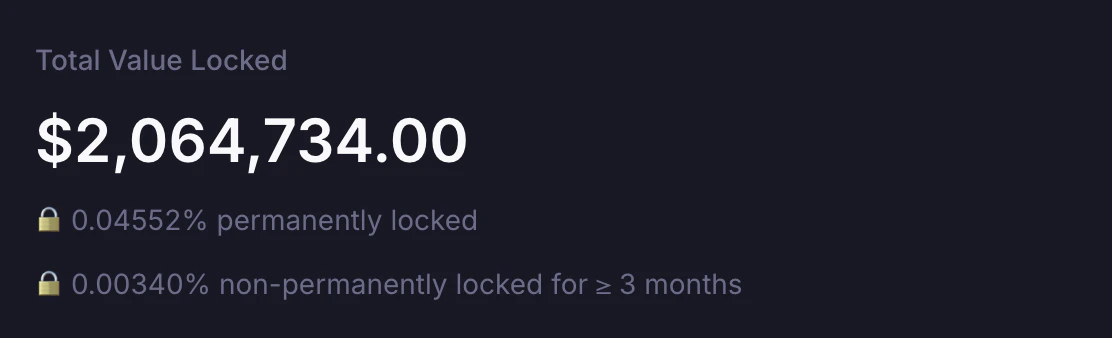
At the top left of the pool detail page, you can view the pool’s TVL (Total Value Locked). This is the total amount of token assets in the pool in terms of \$USD value (how much all the tokens currently in the pool are worth). DAMM v2 allows both permanent and non-permanent locking of liquidity, and the TVL section would show the following:
* Vested Liquidity: % of liquidity non-permanently locked for at least 3 months (at this point in time)
* Permanently Locked Liquidity: % of liquidity permanently locked in the pool
Here's a screenshot of this example pool: [URANUS-USDC](https://app.meteora.ag/dammv2/7ccKzmrXBpFHwyZGPqPuKL6bEyWAETSnHwnWe3jEneVc)
### Price Range
For most DAMM v2 pools created via the Meteora user interface (website), the price range supported is 0 to infinity.
But for certain DAMM v2 pools created programmatically using our documentation, they could be configured to have a more concentrated price range with a specific min price and max price for higher capital efficiency. Once a pool is created, the price range for that specific pool is fixed and can never be adjusted again.
Compounding fee pools use DAMM v2's compounding liquidity mode and do not use a custom min-max price range.
Here’s a screenshot of the example pool: [SOL-USDC](https://app.meteora.ag/dammv2/8Pm2kZpnxD3hoMmt4bjStX2Pw2Z9abpbHzZxMPqxPmie), where the price range is concentrated at 70 - 440 USDC/SOL.
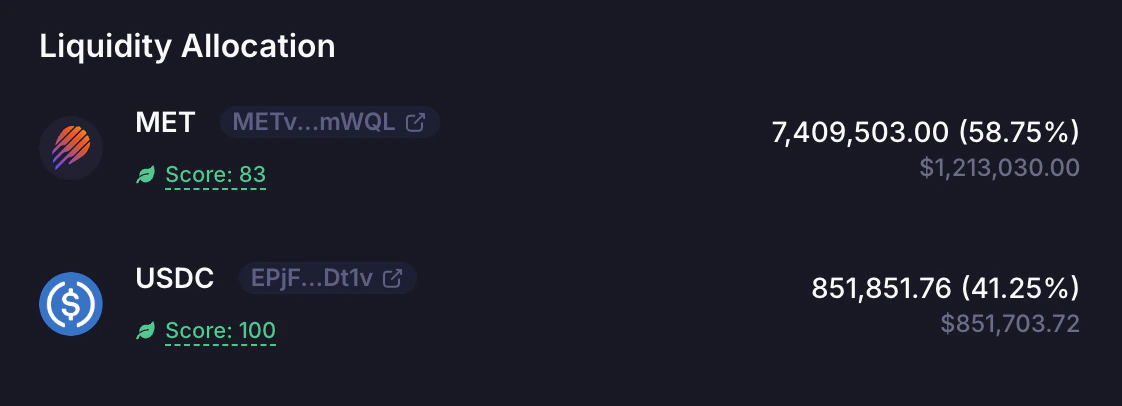
### Liquidity Allocation
The TVL is further broken down into the amount of each token in the pool. In this screenshot of the example pool [ICM-SOL](https://app.meteora.ag/dammv2/FLuXAxxqMbLkKHWHHCAiX2ub8qZuoC9bb35bSRDNDMo2), \$820,815.85 in TVL is actually made up of 24,451,511 ICM and 2,064.47 SOL.
To support Token 2022 tokens and extensions at DAMM v2 pool creation, a token badge from the project team must be provided. However, some extensions (e.g. transfer hook) are presently unsupported.
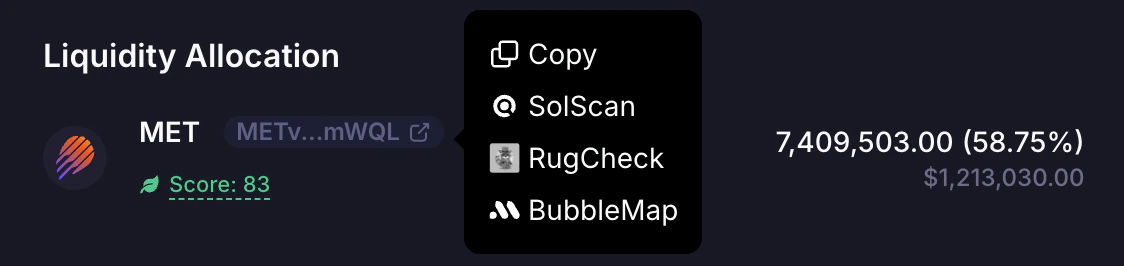
In the Liquidity Allocation section, you can view a snippet of the token’s contract address. Click the icon next to it to access important quicklinks; to copy the token’s contract address, view the contract address on Solscan, check for token risks on Rugcheck.xyz, or analyze the token behaviour on Bubblemaps.
You can also view the Jupiter Organic Score for the token and if the token has any risks.
### Pool Details
#### Current Pool Price
The Current Pool Price may not always be close to the general market price, especially when it was just created with a wrong initial price and has low liquidity. Check that the pool price is in sync with the market price prior to adding liquidity, to avoid incurring a loss due to arbitrage trades.
#### 24h Volume
Volume generated by the pool in 24h
#### 24h Fee
Total fees collected by the pool in 24h
#### Base Fee
Minimum fee charged when swaps occur through the pool, before any Dynamic Fee component is added and before fees are split by the program.
#### Dynamic Fee
Additional fee charged on each trade based on real-time price volatility.
#### Total Trading Fee
```math theme={"system"}
Base Fee + Dynamic Fee
```
The total trading fee is split by the program into protocol fee, referral fee when applicable, claimable LP fee, and, for compounding pools, compounding fee.
#### Protocol Fee
Amount of fees charged on each trade which goes to the protocol or integrations. DAMM v2 currently sets the protocol fee to 20% of the total trading fee amount.
#### Fee Collection Mode
* Pool creators can choose how LP fees are collected: **Base + Quote**, **Quote**, or **Quote + Compounding**.
* In **Base + Quote** mode, fees are collected from the output token of each swap.
* In **Quote** mode, fees are always collected in Token B, which is commonly the quote token. For example, in a URANUS-SOL pool, pool creators can set it so LP fees are collected only in SOL.
* In **Quote + Compounding** mode, fees are collected in Token B. A configured portion is compounded back into pool liquidity, while the remaining portion is claimable.
* Once the pool is created, the selected Fee Collection Mode cannot be changed.
* As an LP, you can choose the specific DAMM v2 pool that has the Fee Collection Mode that fits your requirements.
#### Base Fee Mode
* DAMM v2 supports multiple Base Fee modes: Fixed, Time Scheduler, Market Cap Scheduler, and Rate Limiter.
* **Fixed** mode keeps the base fee constant.
* **Time Scheduler** starts from a configurable fee and reduces it over a configured number of periods after the pool activation point. The schedule can be Linear or Exponential.
* **Market Cap Scheduler** reduces fees as the pool price moves upward from the initial price toward configured price steps. The schedule can be Linear or Exponential, and can also expire after a configured duration.
* **Rate Limiter** increases fees based on trade size during a configured launch window. It applies to quote-token fee collection and is designed to make larger quote-to-base buys more expensive during the protected period.
* As an LP, you can choose the specific DAMM v2 pool that has the Base Fee mode and parameters that fit your requirements.
**Exponential Fee Time Scheduler**
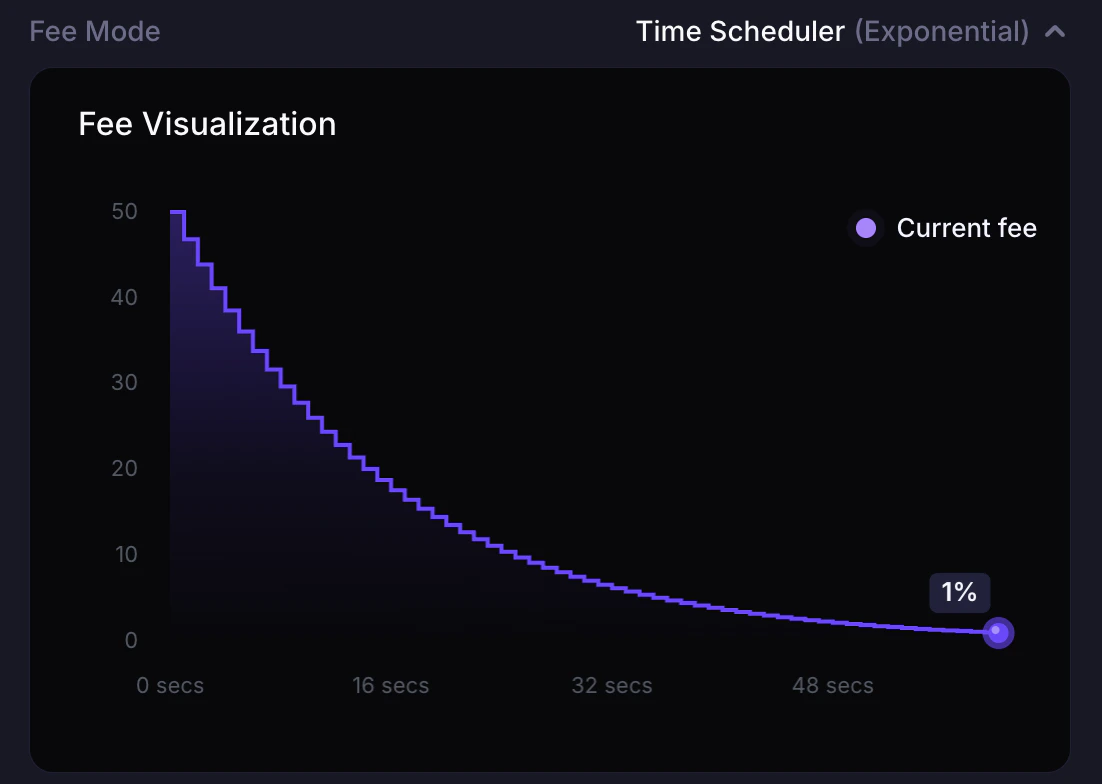
In this [ICM-SOL](https://app.meteora.ag/dammv2/FLuXAxxqMbLkKHWHHCAiX2ub8qZuoC9bb35bSRDNDMo2) pool example, Exponential mode is used. Fees started at 50% before dropping exponentially over time until it reached 1% after 60 seconds.
**Linear Fee Time Scheduler**
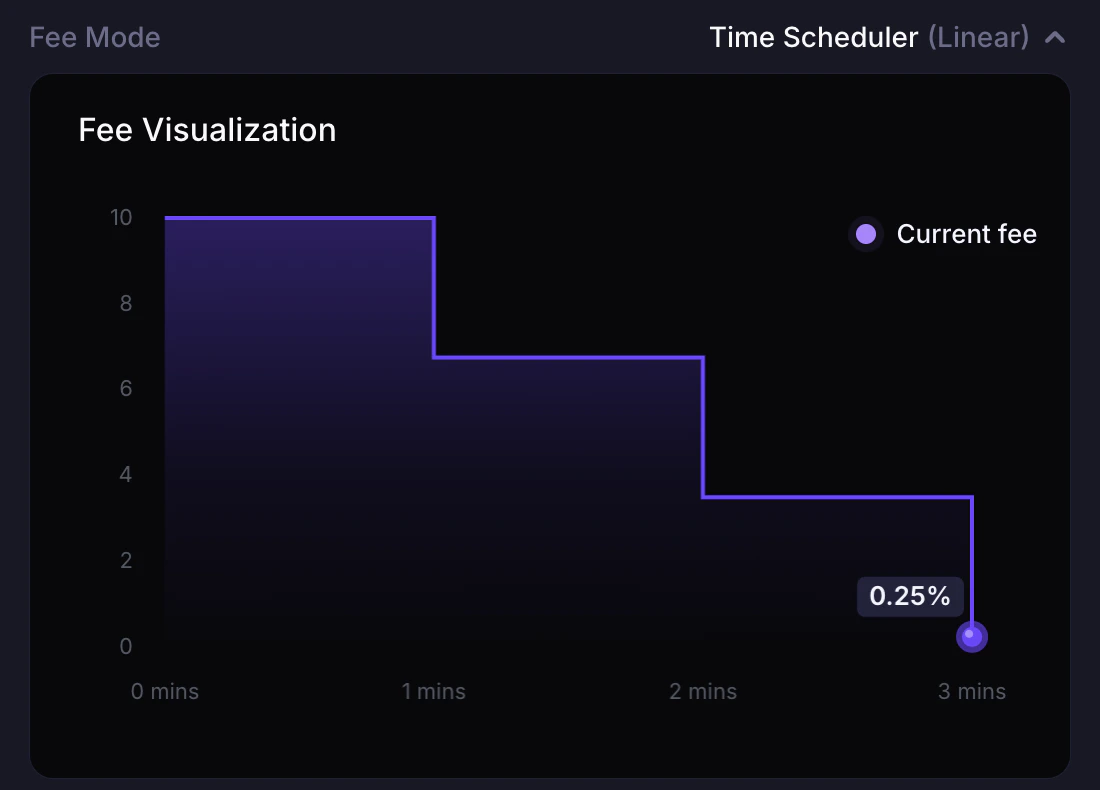
In this [WLFI-USD1](https://app.meteora.ag/dammv2/F6L1RKAKwNuWwyCwweja6uxAkRv41XFTRWmg8tKGkn83) pool example, Linear mode is used, and fees started at 10% before dropping linearly over time until it reached 0.25% after 3 minutes.
**Rate Limiter**
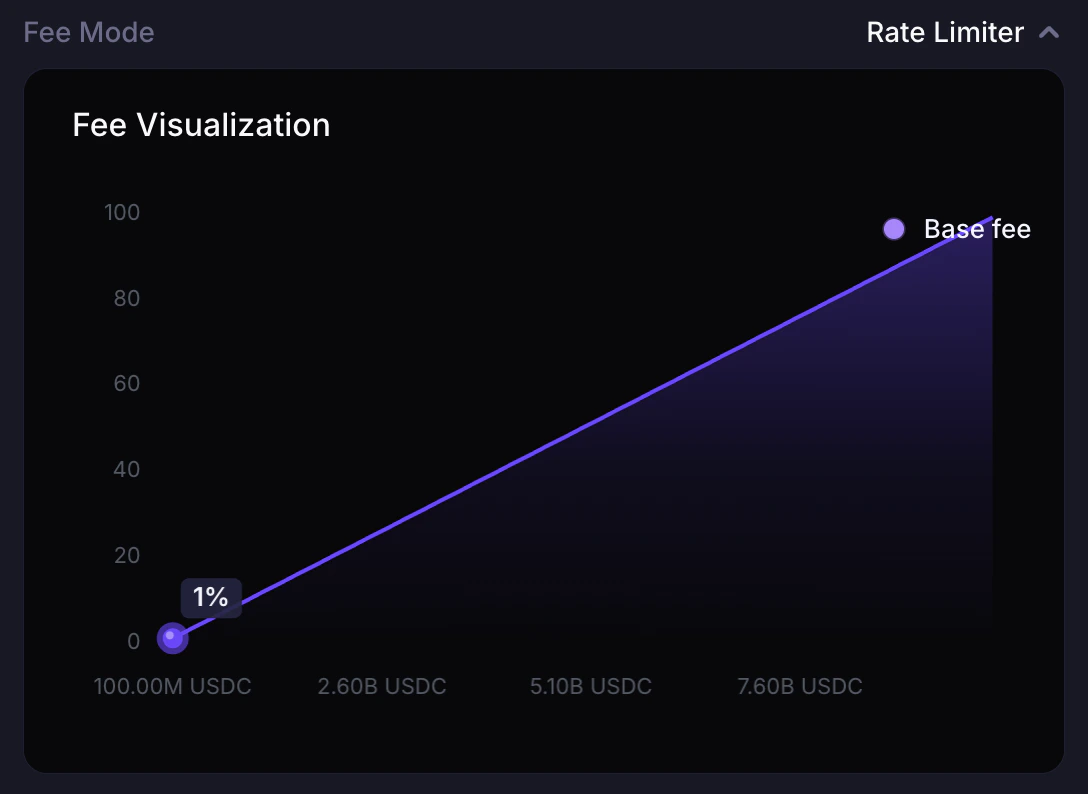
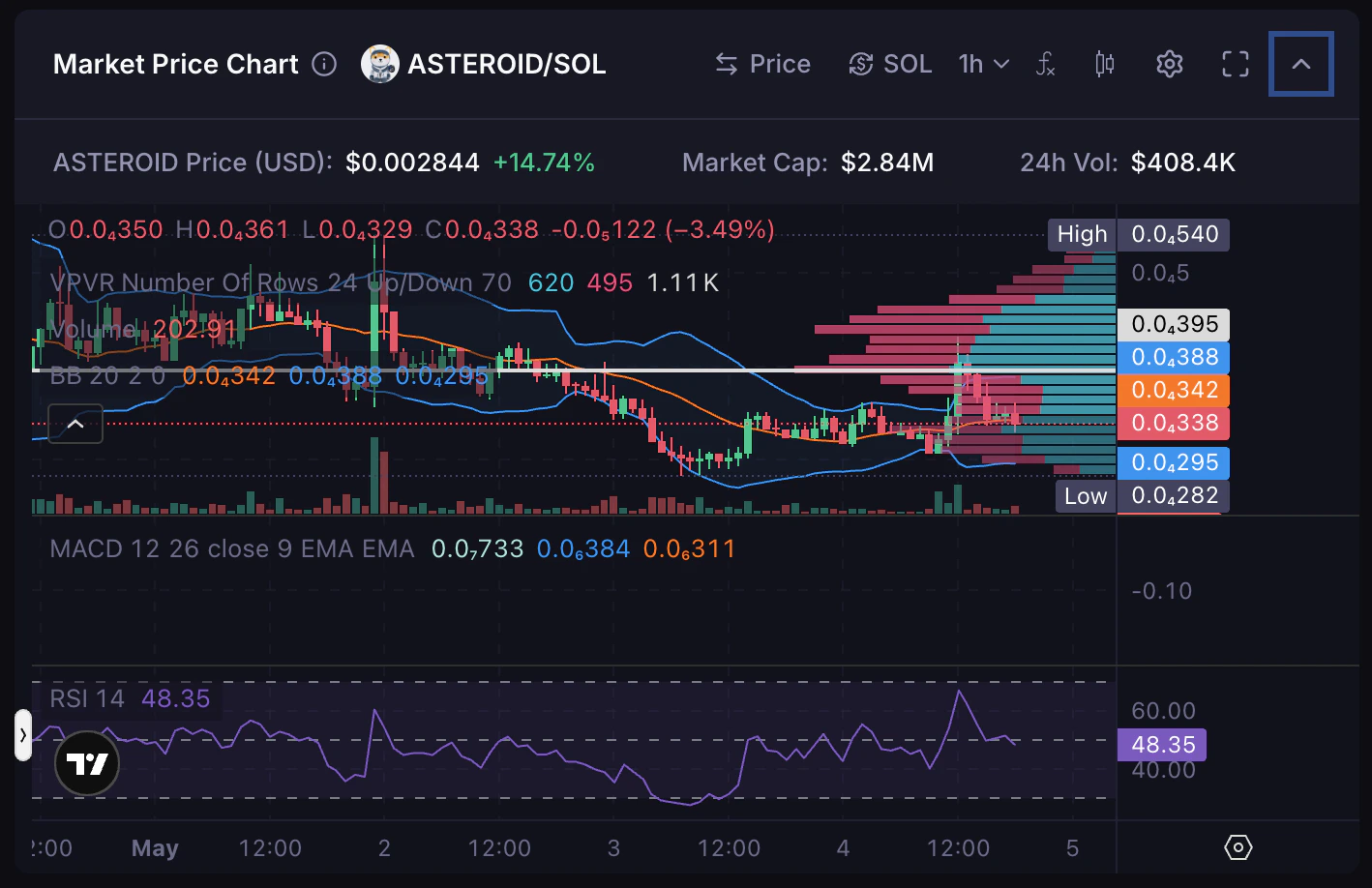
In this [ASTEROID-SOL](https://app.meteora.ag/dammv2/5xLdp92fwbcrqXKG24G9SM4C4ha5h1wouxm8RCPyhXxW) pool example, Rate Limiter mode is used, and fees started at 1% before increasing exponentially based on trade size until it reached 99% after 12 hours.
**Exponential Fee MarketCap Scheduler**
In this [MET-SOL](https://app.meteora.ag/dammv2/9XjqpG4FidkXrePLoXAAVi8916YV1hjd12MiysDhGQ8K) pool example, Exponential mode is used. Fees started at 1% before dropping exponentially as the marketcap grows until it reached 0.3%.
**Linear Fee MarketCap Scheduler**
In this [ASTEROID-USD1](https://app.meteora.ag/dammv2/6p3oRMqHtAnjsKBUsmu9Smcy5bZP3UYJcF9eB8tZYub) pool example, Linear mode is used, and fees started at 1% before dropping linearly as the marketcap grows until it reached 0.3%.
#### Pool Address
On each DAMM v2 pool detail page, you can also easily open up the pool address page on Solscan if required.
#### Community Built-in Tools
Meteora’s LP Army comprises many talented developers, who have over time built useful tools to improve LPing for everyone. The full list of tools can be found [here](https://www.lparmy.com/community-tools).
#### Pool Chart
Popular data analytics and charting tools with more granular data have integrated Meteora’s liquidity pools, including Birdeye, GeckoTerminal, DEXScreener, DEXTools, GMGN. We’ve provided buttons that link to the specific pool page for each of these tools.
#### Supported Trading Platforms
Popular trading platforms and bots have also integrated Meteora’s liquidity pools, including Axiom, Banana Gun, BONKbot, Fluxbot, Jupiter, MetaSolanaBot, Photon, and Trojan. We’ve provided buttons that link specifically to each of the trading platforms. Note: For pools without SOL as the quote token, BONKbot, Photon, and Axiom won’t be in the list.
#### Total Positions
When you create a new DAMM v2 pool or add liquidity to a pool, your liquidity is tracked in a position account represented by a unique liquidity position NFT in your wallet. Adding more liquidity to the same position increases that position's unlocked liquidity.
But DAMM v2 can support multiple individual liquidity positions, so if your friend has a separate position in the same pool, and sends his liquidity position NFT to your wallet address, you would then see that you now have 2 liquidity positions (your original position and the new position sent to you). The number of positions you see on the UI would correspond to the number of unique position NFTs you hold in your wallet.
On the UI, you can only select and view the details for one liquidity position at a time.
#### Total Deposits
This represents the total \$ value of all your deposits in all your liquidity positions.
#### Position Value
This represents the \$ value of your deposits in the specific liquidity position selected.
#### Fees from position
This represents the \$ value of the accumulated claimable fees for the specific liquidity position selected. In Base + Quote and Quote fee modes, LP fees accumulate separately and have to be manually claimed by the LP. In Quote + Compounding mode, only the non-compounded portion is claimable because the configured compounding portion is added back into pool liquidity.
## How to Add Liquidity
Firstly, navigate to the “Deposit” tab.
### Enter Deposit Amount
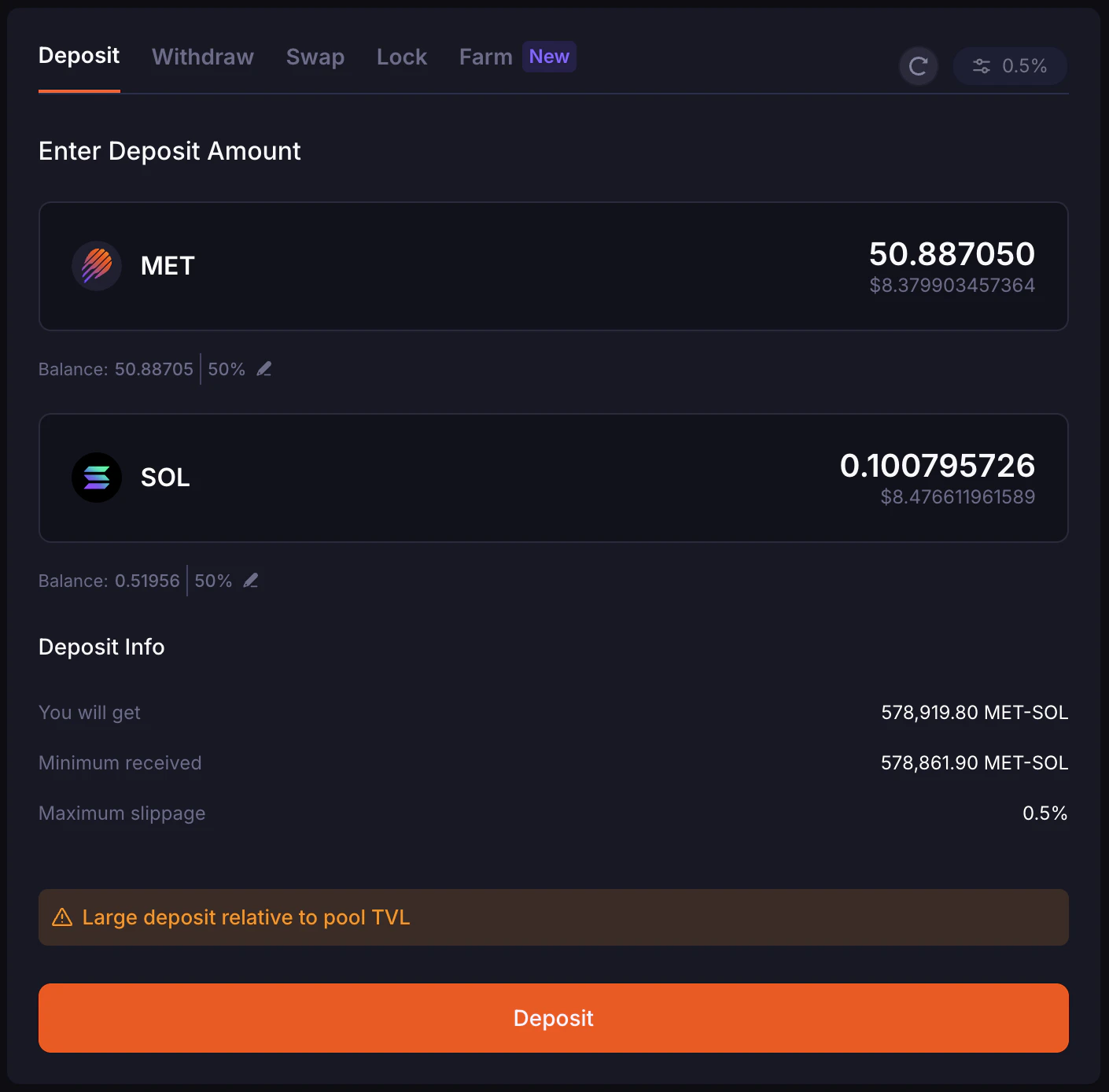
Under the “Deposit” tab, under “Enter deposit amount”, you can enter the amount of Base token or Quote token you’d like to deposit into the pool. The corresponding \$USD value will be shown at the bottom of your input.
When you enter an amount for either the Base or Quote Token, Meteora automatically fills in the approximate amount of the other token based on the current liquidity allocation ratio.
For example, if the SOL in the pool comprises 44.93% of liquidity, while USDC comprises 55.07%:
When you enter 2 USDC, the SOL input field will automatically state approximately \~0.109525293 SOL, which is equivalent to (2 / 55.07) x 44.93 = \~\$1.63). The amount used may differ slightly from the expected token ratio because the token ratio within the active price bin is constantly changing as swaps occur.
We’ve also provided a “Max” and a custom “%” button near the Base and Quote token fields. Clicking “Max” automatically enters your entire balance of the respective token, while clicking the custom % button automatically enters an amount based on the % indicated (e.g. 99%)
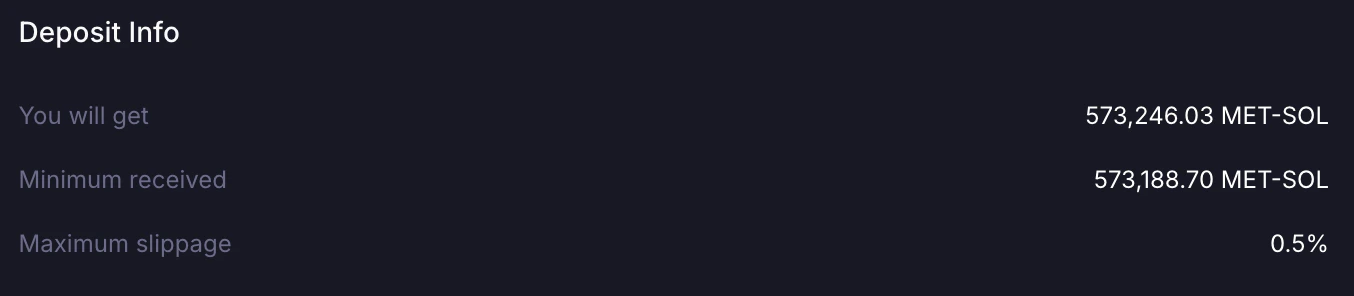
After the Base token and Quote token input fields are filled, under “Deposit info”, you can check your deposit details before you confirm your transaction:
* The estimated amount you will get
* The Minimum Received
* The Maximum Slippage %, which you can preset
Once you have verified that the details are acceptable, click the “Deposit” button.
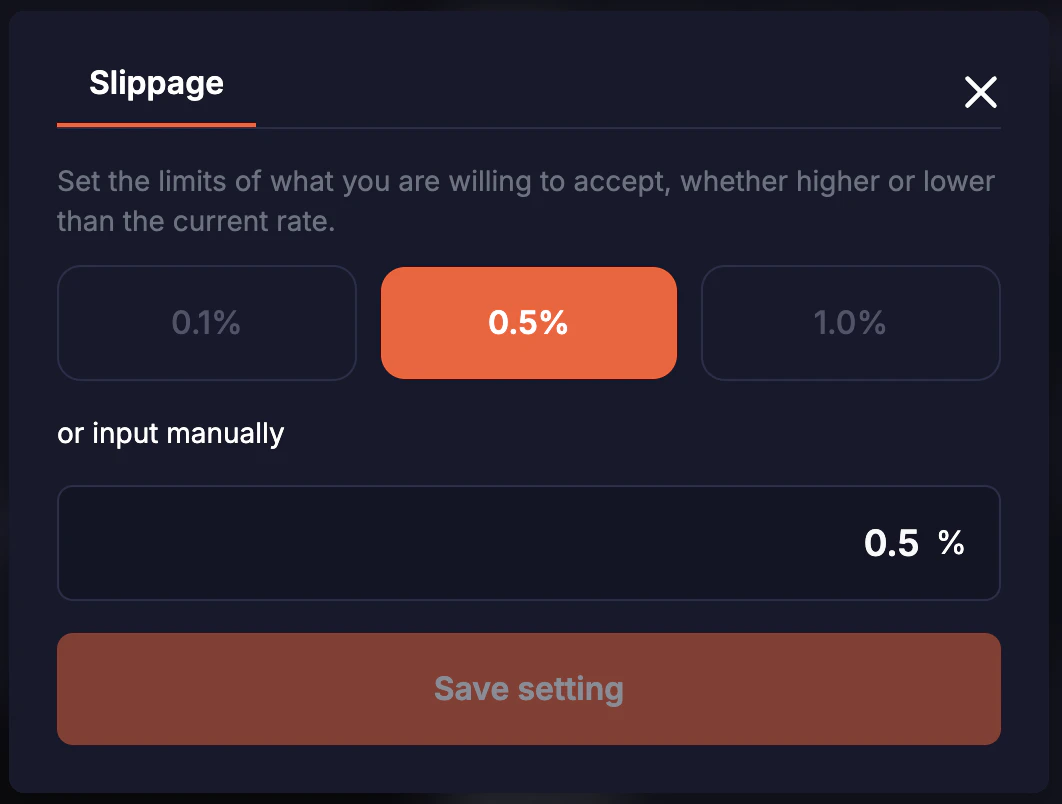
### Setting Liquidity Slippage
You can adjust how much change to the pool price you're willing to accept and still add liquidity. If the pool price changes a lot while adding liquidity, your transaction may fail. Increase this slippage to improve your success rate.
## How to Withdraw Liquidity
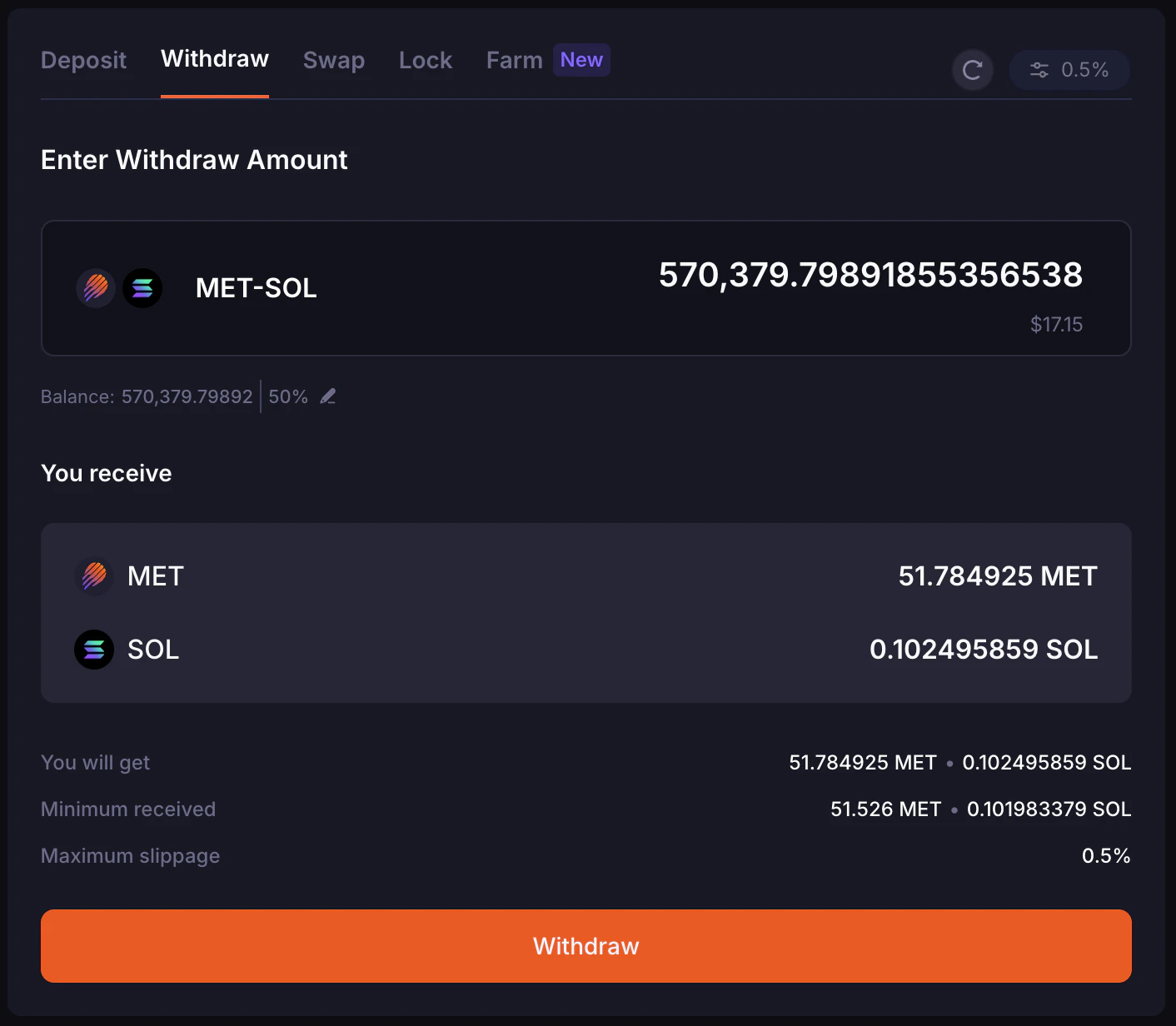
On the pool detail page, navigate to the “Withdraw” tab.
Enter the amount of unlocked liquidity you want to withdraw from the selected position.
In the “Withdraw Info” section, you will see a summary of how many Base tokens and Quote tokens you’d be getting:
* The estimated amount you will get
* The Minimum Received
* The Maximum Slippage %, which you can preset
Once you have verified that the details are acceptable, click the orange “Withdraw” button.
## How to Lock Liquidity
If you have never added and locked liquidity on Meteora before, “My locks” would show “No locks found".
### Permanent Lock Liquidity
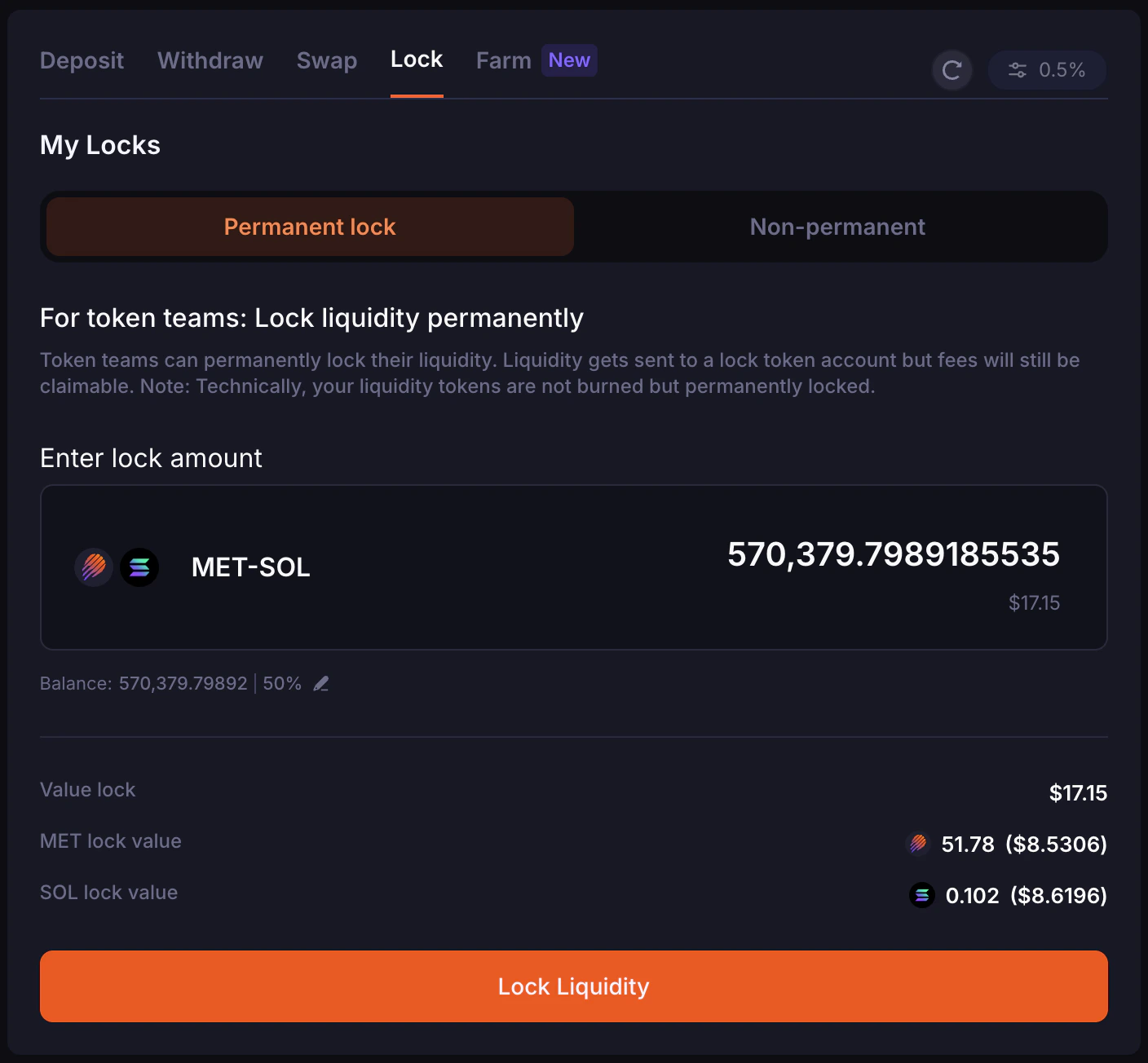
Token teams, especially memecoins, can decide if they wish to permanently lock their liquidity on Meteora. Permanent locking moves liquidity from the position's unlocked liquidity into its permanently locked liquidity state, while fees remain claimable.
To do this, navigate to the “Permanent Lock” tab and enter the amount of unlocked liquidity you’d like to lock permanently.
You’d be able to see the total value you’re locking, as well as the individual token amounts and their equivalent \$ value.
When you’re ready, click the “Lock Liquidity” button. A pop-up would appear requesting confirmation. You would have to type in the text “permanently lock my liquidity never to get it back” as a way to confirm the transaction.
If you had permanently-locked your assets, you would no longer be able to access or withdraw those underlying assets.
### Non-Permanent Lock Liquidity
LPs also have the option to lock their liquidity in a “Non-permanent” manner, also known as a lock with vesting. This means unlocked liquidity is moved into vested liquidity and released back to unlocked liquidity based on the configured vesting schedule.
To begin, select the “Non-permanent” tab and enter the amount of unlocked liquidity to lock.
There are a few parameters that you’d have to decide based on your preferences and requirements, such as:
* Vesting Start Date
* Vesting Duration (Minute)
* Cliff (Optional) (Minute)
* Unlock Schedule (Minutely)
Once these parameters are all filled up, you can proceed to click the “Lock Liquidity” button.
## FAQ
### Using DAMM v2 on the Meteora UI
#### 1. When you deposit tokens into the pool, how is the liquidity amount calculated?
When you deposit token amounts on the Meteora UI, it calculates the liquidity amount for the selected position before sending the transaction to the program.
Example:
* From token B: amount\_b = liquidity\_delta (pool.current\_sqrt\_price - pool.min\_sqrt\_price)
* So you can reverse: liquidity\_delta = amount\_b / (pool.current\_sqrt\_price - pool.min\_sqrt\_price)
#### 2. How is the fee collected when the pool creator selects fee collection mode as Quote only?
Regarding how DAMM v2 collects fee only using the Quote token ("Token B"):
* If a user swaps from A -> B, fee is charged on B; protocol takes some of the user's B
* If a user swaps from B -> A, fee is charged on B before the swap is calculated; protocol takes some of the user's B before it gets swapped to A
### Liquidity Position NFT
#### 1. What does the position state of the NFT manage?
The position state manages unlocked liquidity, permanently locked liquidity, vested liquidity, pending fees, and pending rewards.
User can interact with the following flows in the same, single position:
* Permanently lock part of the liquidity
* Create multiple vesting schedules
* Add more liquidity (unlocked liquidity)
#### 2. Can I transfer a position NFT (which represents a liquidity position)?
Yes. For example, you already have a position in a pool, which is represented by a position NFT. Someone also has a position in that same pool and he sends you his position NFT. Now you would have 2 position NFTs (positions) for the same pool.
### Farming
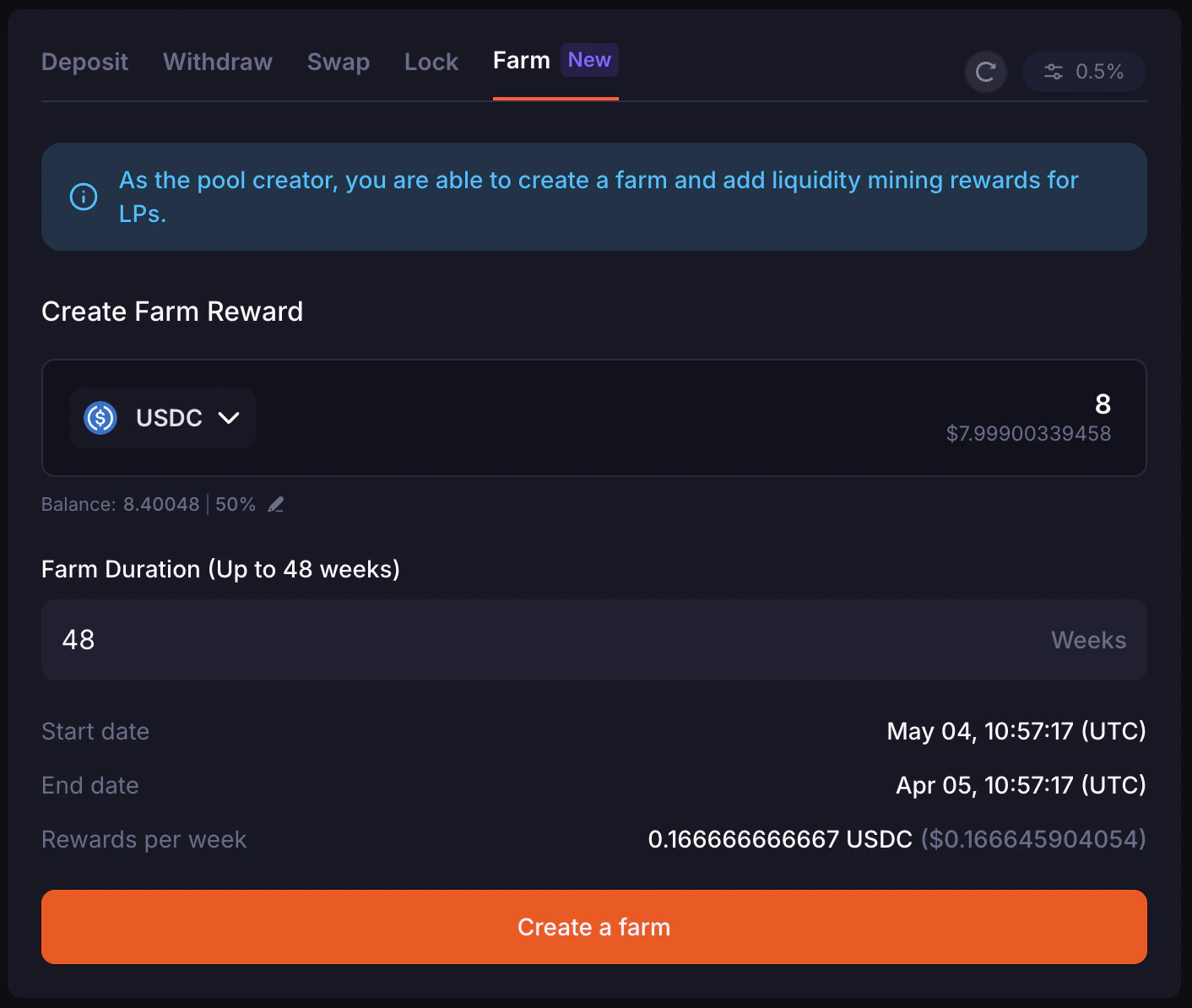
DAMM v2 has an in-built farming mechanism within the program. This is unlike DAMM v1, where there is a separate farming program.
For DAMM v2, each pool can initialize up to 2 reward tokens. Each initialized reward has its own reward vault, reward duration, reward rate, and funder.
When the `initialize_reward` program endpoint is used, a reward vault for the specific pool and reward index is created, and the initiator can specify the reward token and reward duration.
Rewards are shared with liquidity providers over the farming duration and can be claimed from each eligible position.