

DLMM
Creating a DLMM Standard Pool
Anyone can create a DLMM Standard pool here: https://meteora.ag/create/dlmm/standard1
Select your tokens
Select the trading pair for the DLMM Standard Pool.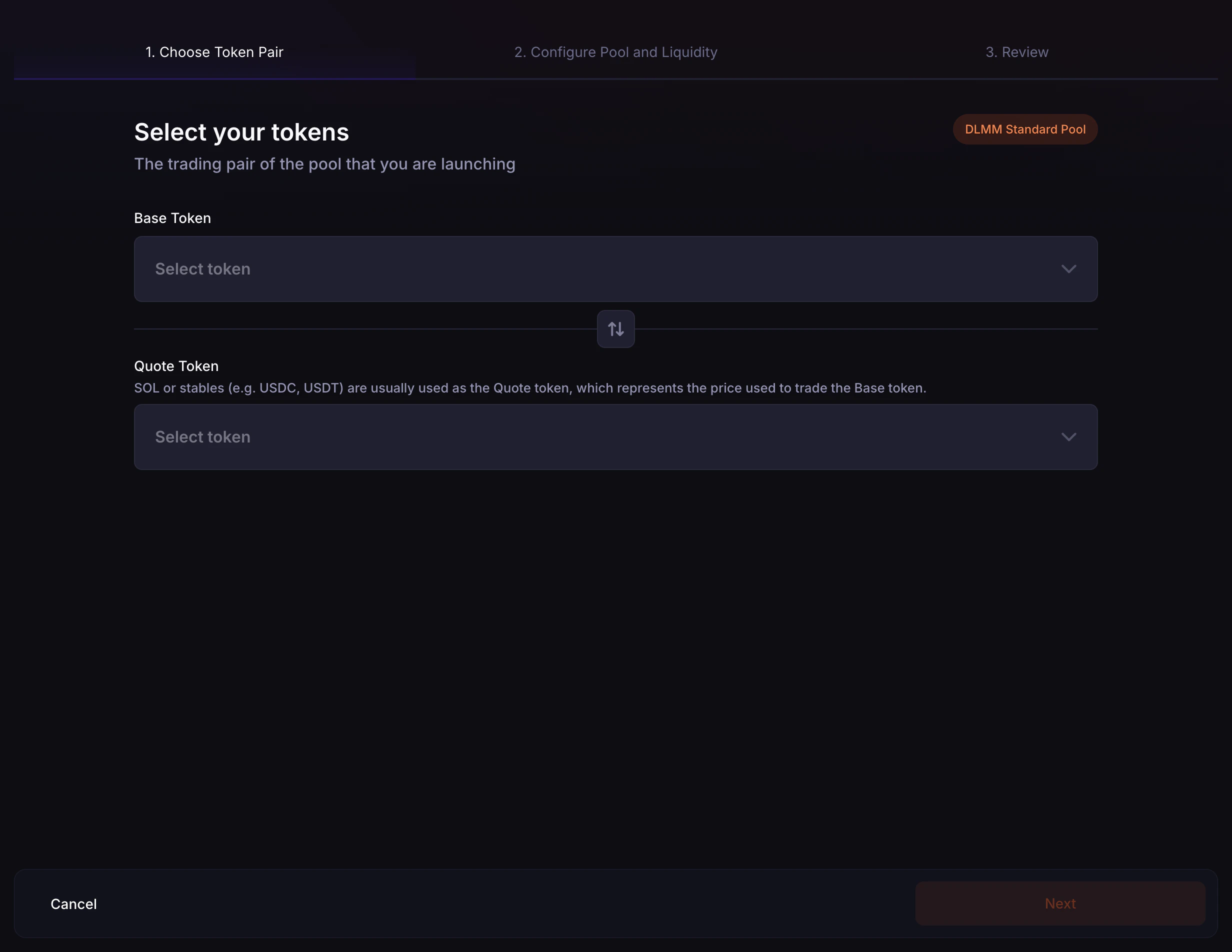
- Base Token: The token whose price is being quoted. You can search by token ticker or paste the token contract address.
- Quote Token: The token used to price the Base token. SOL or stables such as USDC and USDT are usually used as the Quote token.
- Use the swap button if you need to switch the Base and Quote token order.
If you change or swap tokens after configuring the pool, the pool configuration and initial liquidity inputs will reset so you can review the new pair from the beginning.
2
Configure Pool
Set the pool parameters and decide whether to add initial liquidity during pool creation.You can optionally add initial liquidity when creating the pool. If you do not add initial liquidity, Meteora shows the pool creation cost for initializing the pool only.If you add initial liquidity: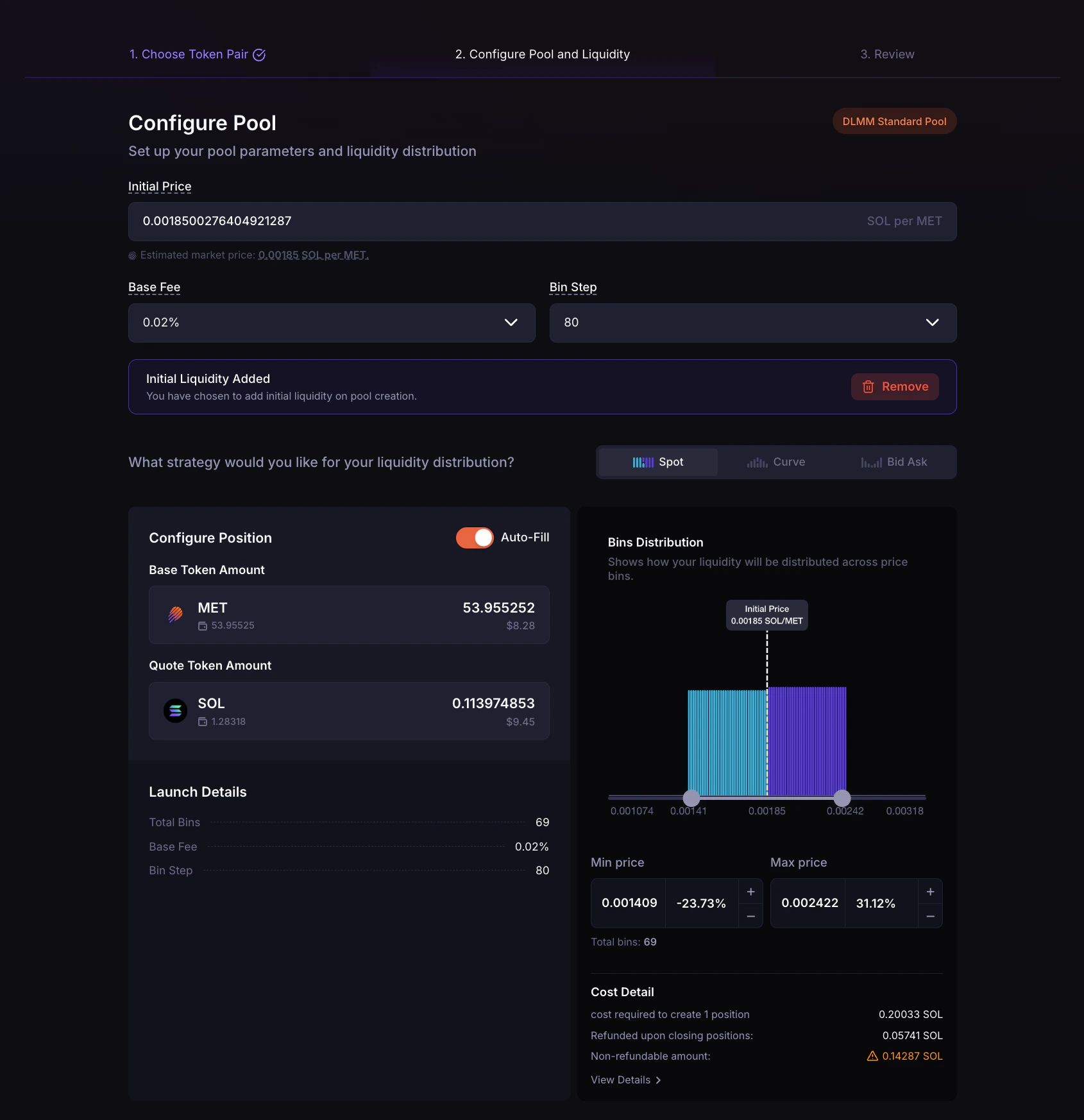
- Initial Price: The pool’s starting price, shown as Quote token per Base token. This sets the active bin at creation and is used to place your initial liquidity range. If a Jupiter market price is available, you can use it as a reference, but you should still verify the price before continuing.
- Base Fee: The swap fee tier for the pool. This is the minimum fee charged on swaps through the pool.
- Bin Step: The price spacing between DLMM bins. You must select the Base Fee first because available Bin Step options depend on the selected Base Fee.
After the pool is created, the Base Fee and Bin Step cannot be changed.
- Choose a liquidity distribution strategy: Spot, Curve, or Bid Ask.
- Enter the Base token amount and/or Quote token amount. When available, Auto-Fill can calculate the other side based on your selected range and strategy.
- Adjust the liquidity range with the min and max price controls, percentage offsets, plus/minus buttons, or the bin distribution slider.
- Use the bin distribution chart to preview how your liquidity will be placed across price bins.
- Review the total number of bins and pool creation cost breakdown before continuing.
When creating a DLMM pool and setting the initial pool price, the eventual pool price may deviate slightly from your input. This is because if the bin price cannot be represented exactly by the program, the frontend will round up or down to the closest price. The deviation depends on the Bin Step you selected.
3
Review & Create
Review your DLMM Standard Pool settings before launching the pool.The review step shows: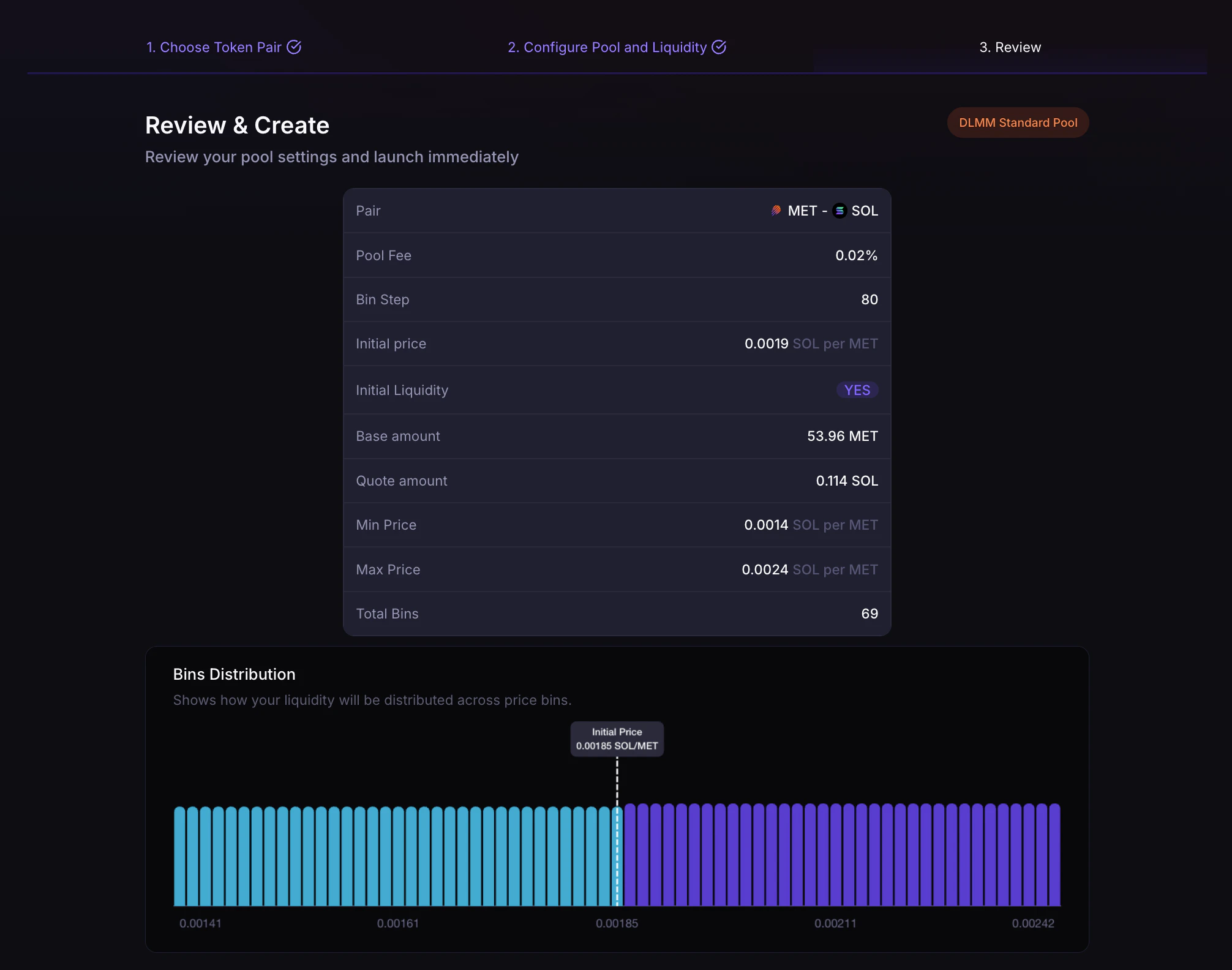
- Pair
- Pool Fee
- Bin Step
- Initial Price
- Whether initial liquidity will be added
- Base and Quote token amounts, if initial liquidity is added
- Min Price, Max Price, and Total Bins, if initial liquidity is added
- Pool creation cost, including rent and transaction fees, excluding seeded liquidity
Creating a DLMM Launch Pool
Anyone can create a DLMM Launch pool here: https://meteora.ag/create/dlmm/launch1
Select your tokens
Select the trading pair for the DLMM Launch Pool.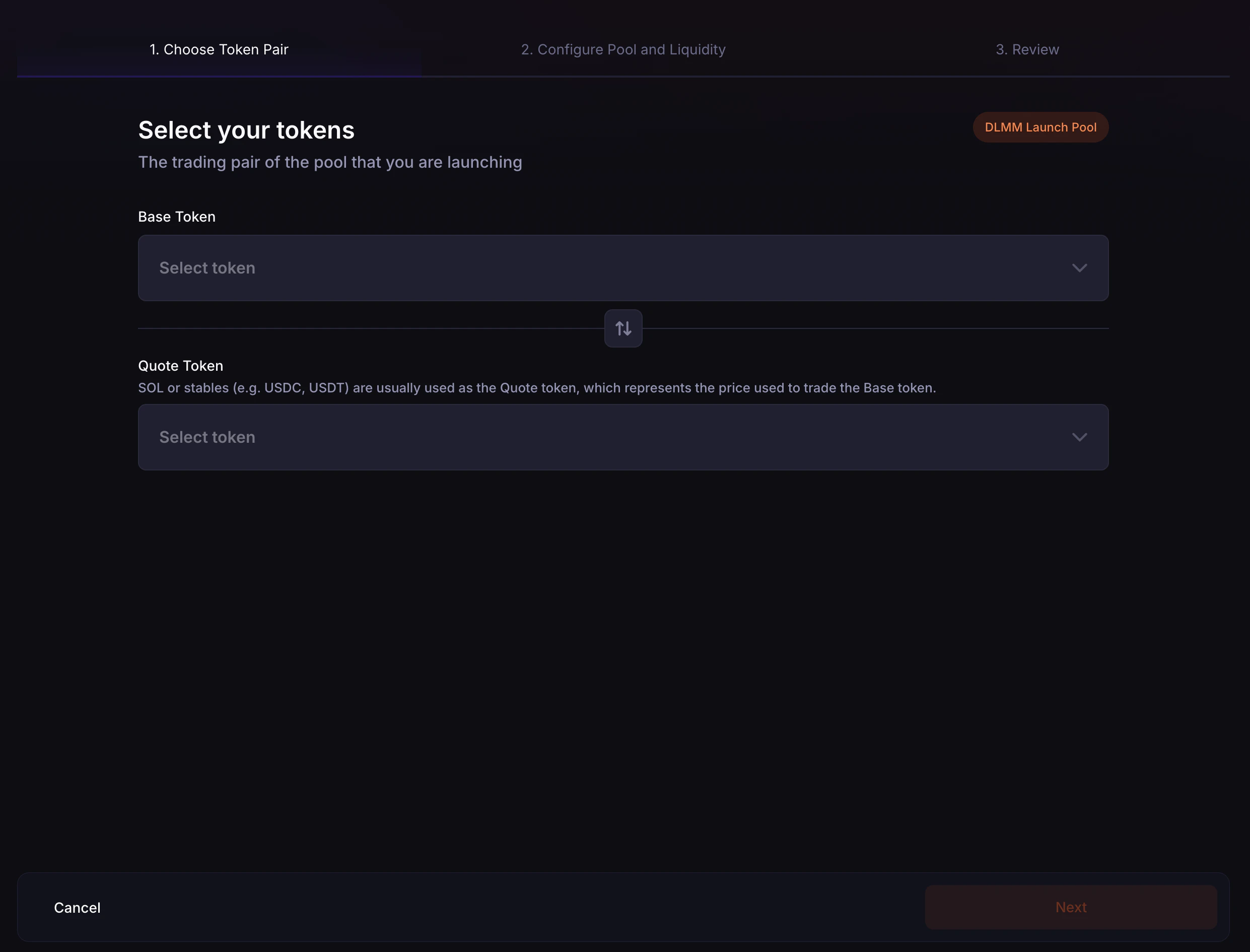
- Base Token: The token you are launching or seeding into the pool.
- Quote Token: The token used to price the Base token. SOL or stables such as USDC and USDT are usually used as the Quote token.
- Use the swap button if you need to switch the Base and Quote token order.
If you change or swap tokens after configuring the pool, the Initial Price, Curve Max Price, and Seed Amount will reset so you can review the new pair from the beginning.
2
Configure Pool
Set the launch parameters, seed liquidity model, and trading start time.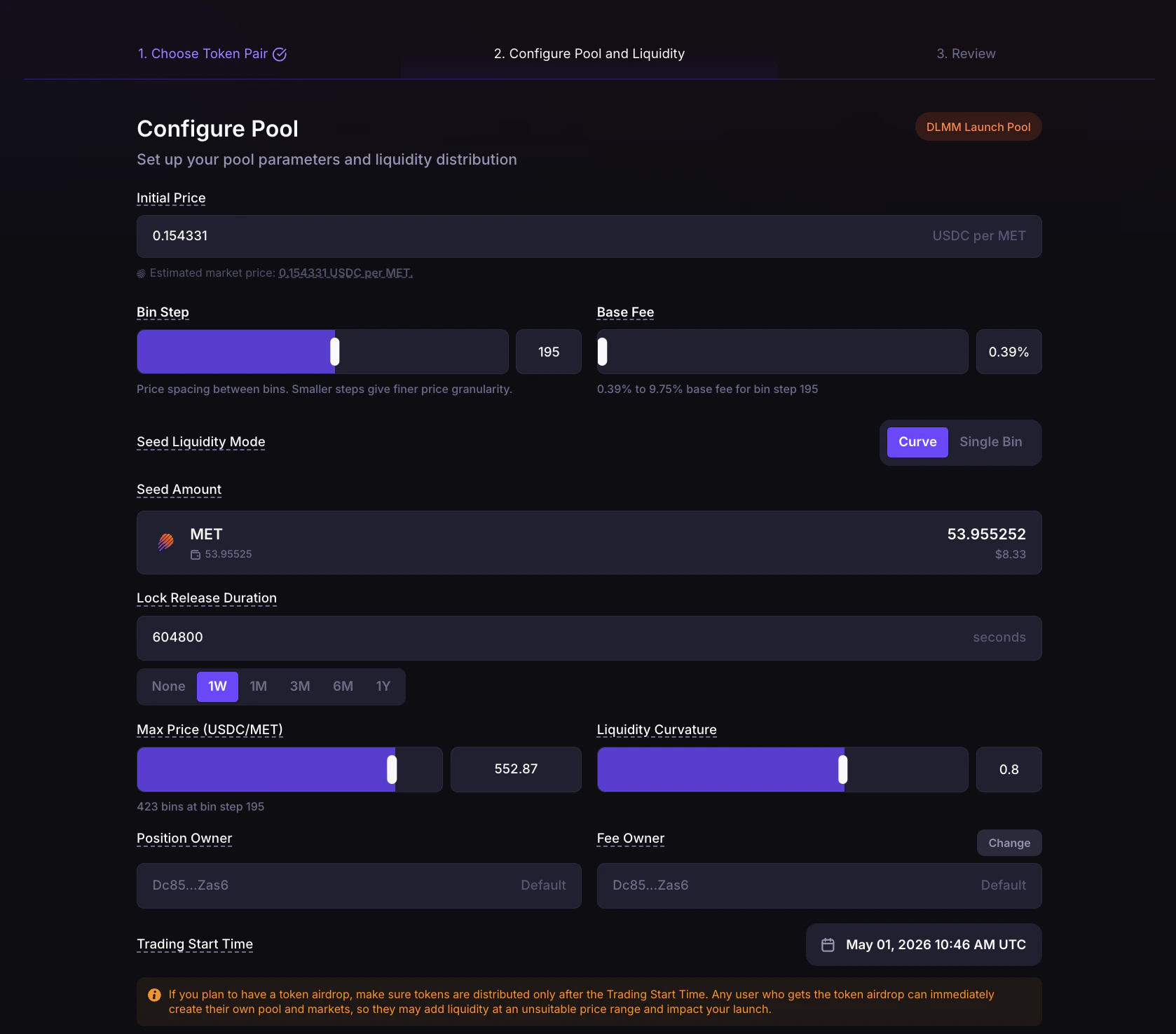
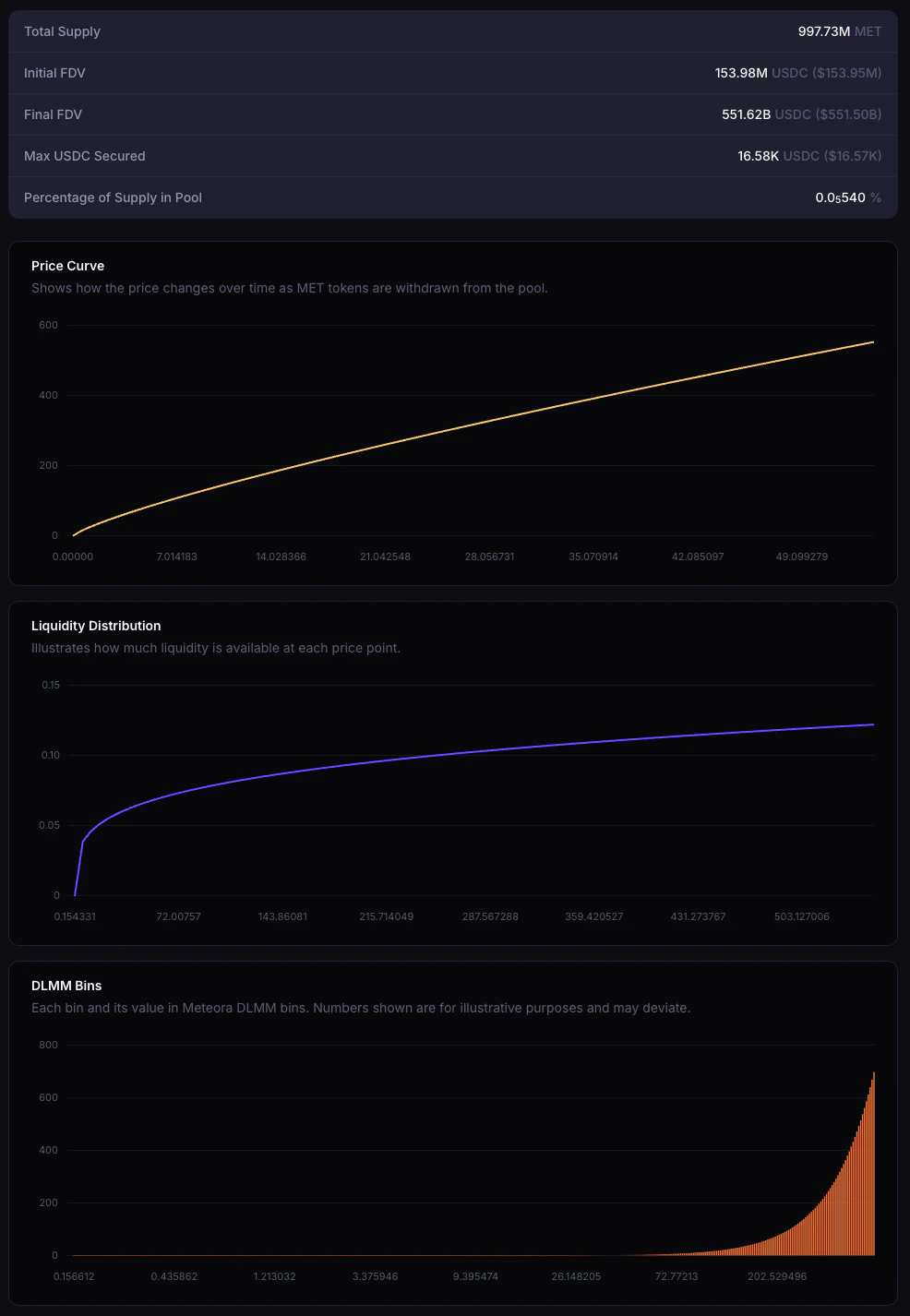
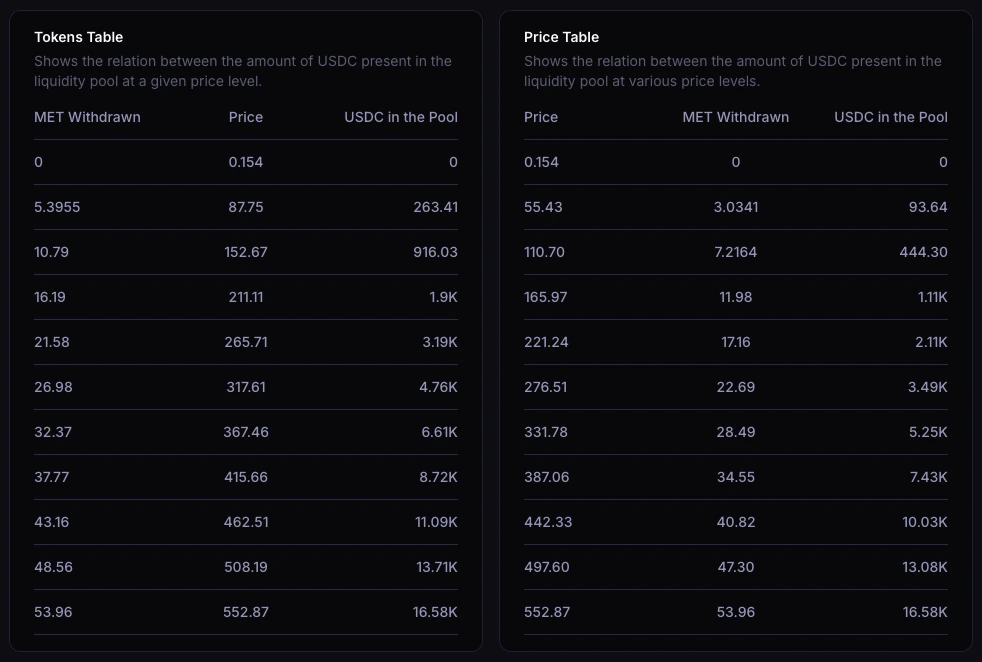
- Initial Price: The pool’s starting price, shown as Quote token per Base token. This sets the active bin at creation and anchors your seed liquidity range.
- Bin Step: The price spacing between DLMM bins. Smaller steps give finer price granularity.
- Base Fee: The swap fee charged on each trade. The allowed fee range depends on the selected Bin Step.
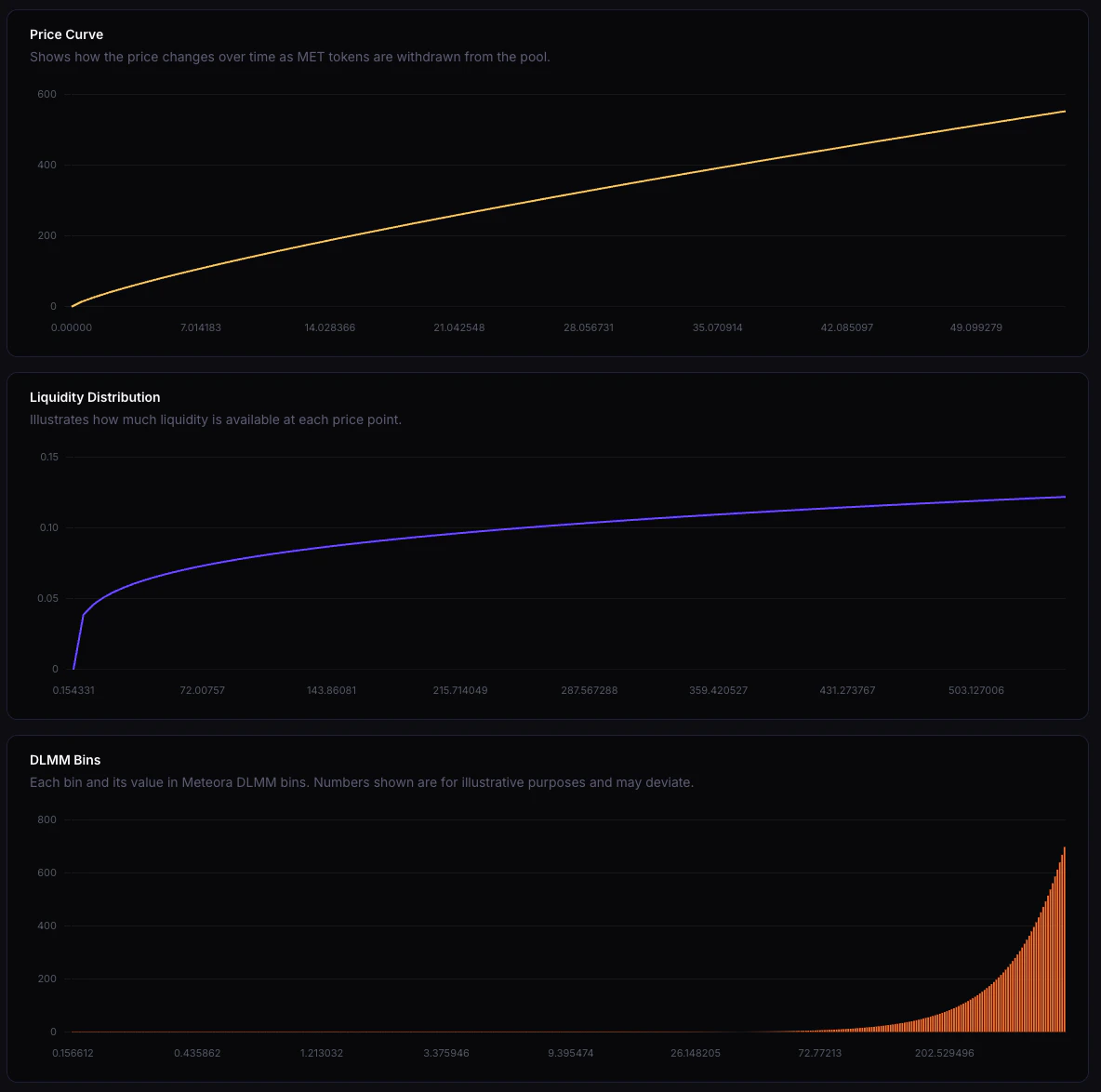
- Seed Liquidity Mode: Choose Curve to spread seeded liquidity across multiple bins, or Single Bin to concentrate liquidity at the Initial Price.
- Seed Amount: Enter the amount of Base token to seed as initial liquidity.
- Lock Release Duration: Choose how long the seeded liquidity stays locked before it can be withdrawn. You can use presets such as None, 1W, 1M, 3M, 6M, or 1Y, or enter a custom duration in seconds.
- Curve Max Price and Liquidity Curvature: For Curve mode, set the upper price bound and shape of the seed liquidity distribution. Higher curvature concentrates more liquidity near the Initial Price.
- Position Owner: The connected wallet owns the seeded liquidity position.
- Fee Owner: The wallet that receives swap fees from the seeded position. You can enter a custom address.
- Trading Start Time: Pick a future date and time when trading becomes active.
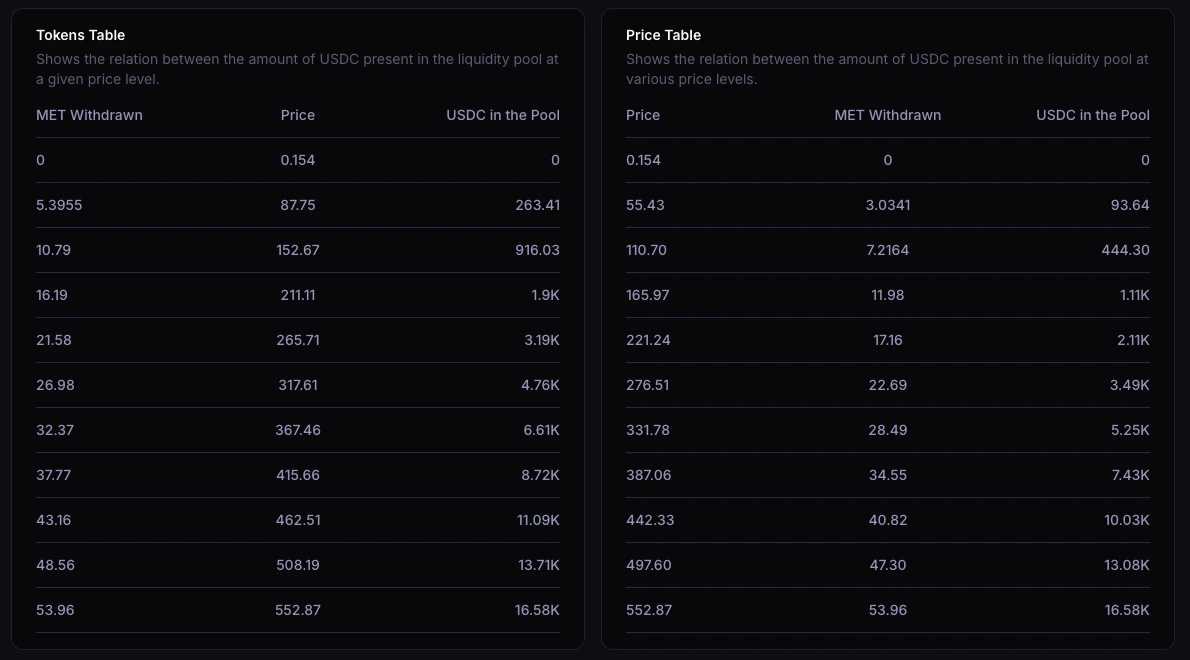
- Supply Details: Review Total Supply, Initial FDV, Final FDV, Max Quote Secured, and Percentage of Supply in Pool.
Meteora shows a curve or single-bin preview and a pool creation cost breakdown before you continue.
3
Review & Create
Review your DLMM Launch Pool settings before launching the pool.The review step shows: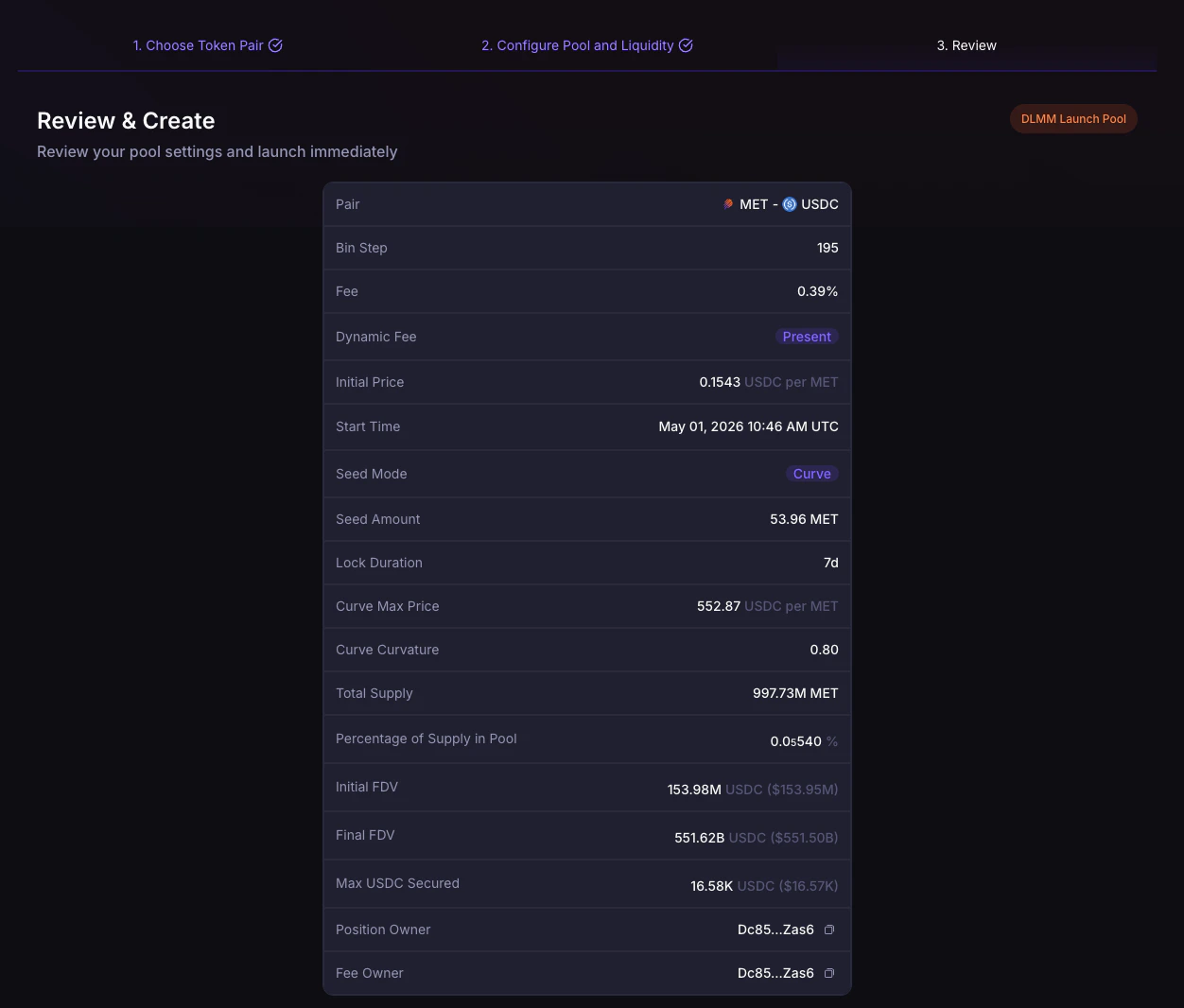
- Pair
- Bin Step
- Fee
- Dynamic Fee
- Initial Price
- Start Time
- Seed Mode
- Seed Amount
- Lock Duration
- Curve Max Price and Curve Curvature, if using Curve mode
- Single Bin Price and rounding, if using Single Bin mode
- Total Supply
- Percentage of Supply in Pool
- Initial FDV and Final FDV
- Max Quote Secured
- Position Owner and Fee Owner
- Pool creation cost, including rent and transaction fees, excluding seeded liquidity
DAMM v2
Creating a DAMM v2 Standard Pool
Anyone can create a DAMM v2 Standard pool here: https://meteora.ag/create/dammv2/standard1
Select your tokens
Select the trading pair for the DAMM v2 Standard Pool.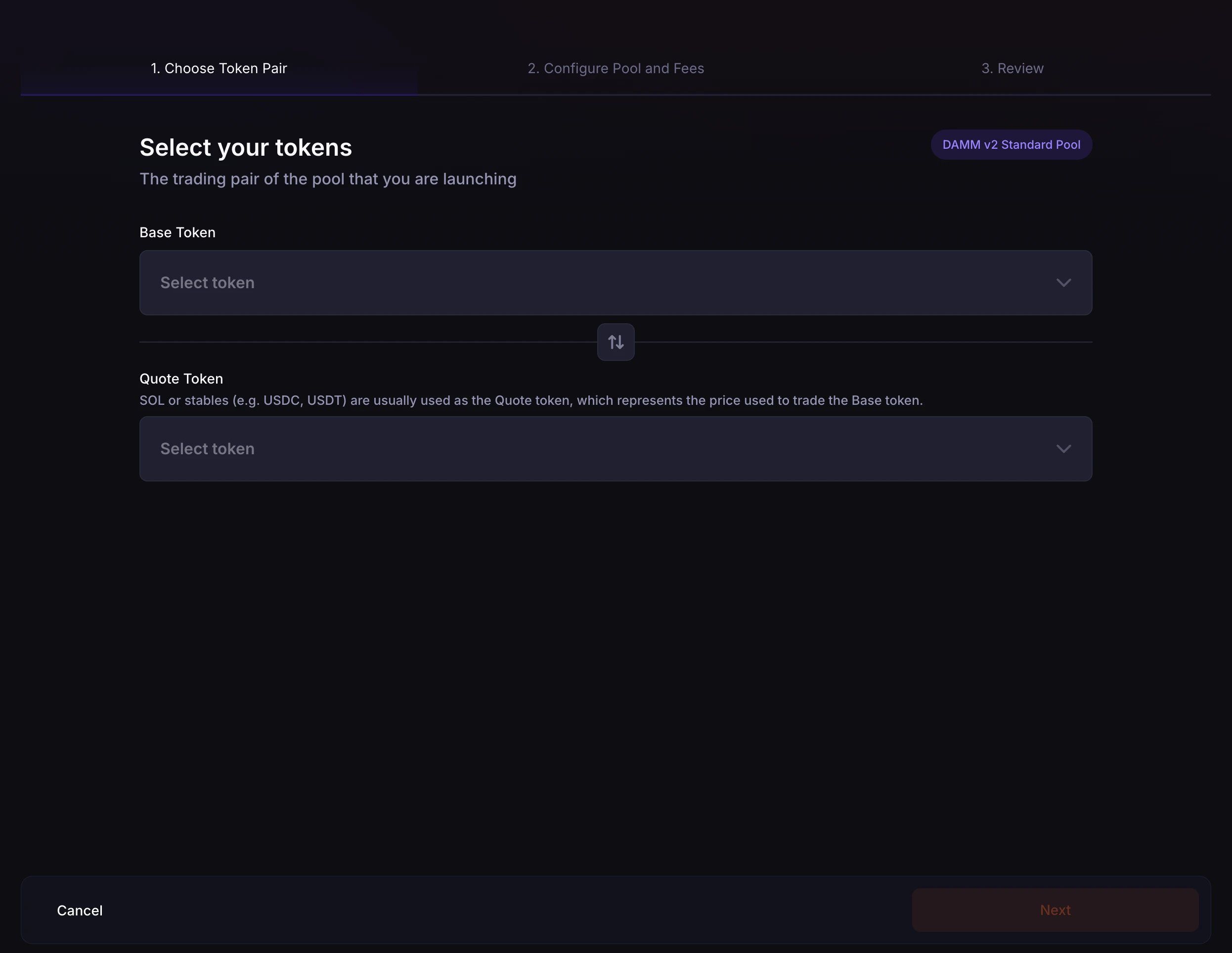
- Base Token: The token whose price is being quoted. You can search by token ticker or paste the token contract address.
- Quote Token: The token used to price the Base token. SOL or stables such as USDC and USDT are usually used as the Quote token.
- Use the swap button if you need to switch the Base and Quote token order.
If you change or swap tokens after configuring the pool, the initial price, fee tier, and token amount inputs will reset so you can review the new pair from the beginning.
Some Token 2022 tokens or extensions may be unsupported for DAMM v2 pool creation. If a selected token is not eligible, Meteora will show a warning before you continue.
2
Configure Pool
Set the pool parameters, deposit amounts, fee behavior, start time, and liquidity lock preference.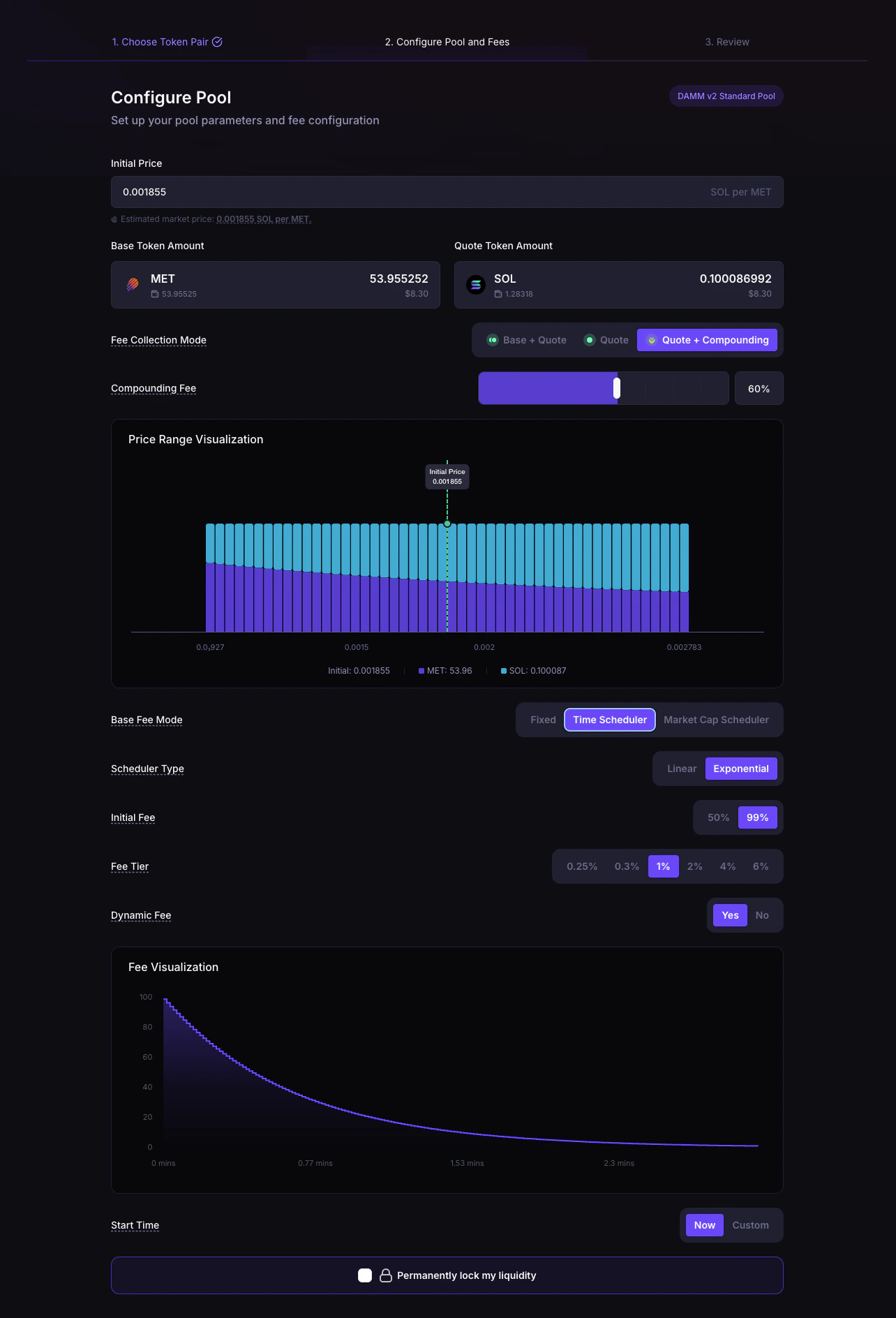
- Initial Price: The pool’s starting price, shown as Quote token per Base token. If a Jupiter market price is available, you can use it as a reference, but you should still verify the price before continuing.
- Base Token Amount and Quote Token Amount: Enter the liquidity amounts to deposit. When you edit one side, Meteora can calculate the other side from the Initial Price.
- Fee Collection Mode: Choose whether fees are collected in Base + Quote, Quote, or Quote + Compounding. If you choose Quote + Compounding, select the percentage of trading fees to reinvest into pool liquidity.
0leaves the LP fee claimable in the quote token. - Price Range Chart: After you enter a valid initial price and both token amounts, use the chart to preview the pool’s price range.
- Base Fee Mode: Choose Fixed, Time Scheduler, or Market Cap Scheduler.
- Scheduler Type: For scheduled fee modes, choose Linear or Exponential.
- Initial Fee: For Time Scheduler, choose the starting fee used by the schedule.
- Fee Tier: Select a fee tier compatible with your fee mode, scheduler, fee collection mode, and Dynamic Fee setting.
- Dynamic Fee: Enable or disable the volatility-based fee component.
- Start Time: Choose Now to start trading immediately after creation, or Custom to schedule a future start time.
- Permanently lock my liquidity: Select this only if you want the deposited liquidity to be permanently locked.
3
Review & Create
Review your DAMM v2 Standard Pool settings before launching the pool.The review step shows: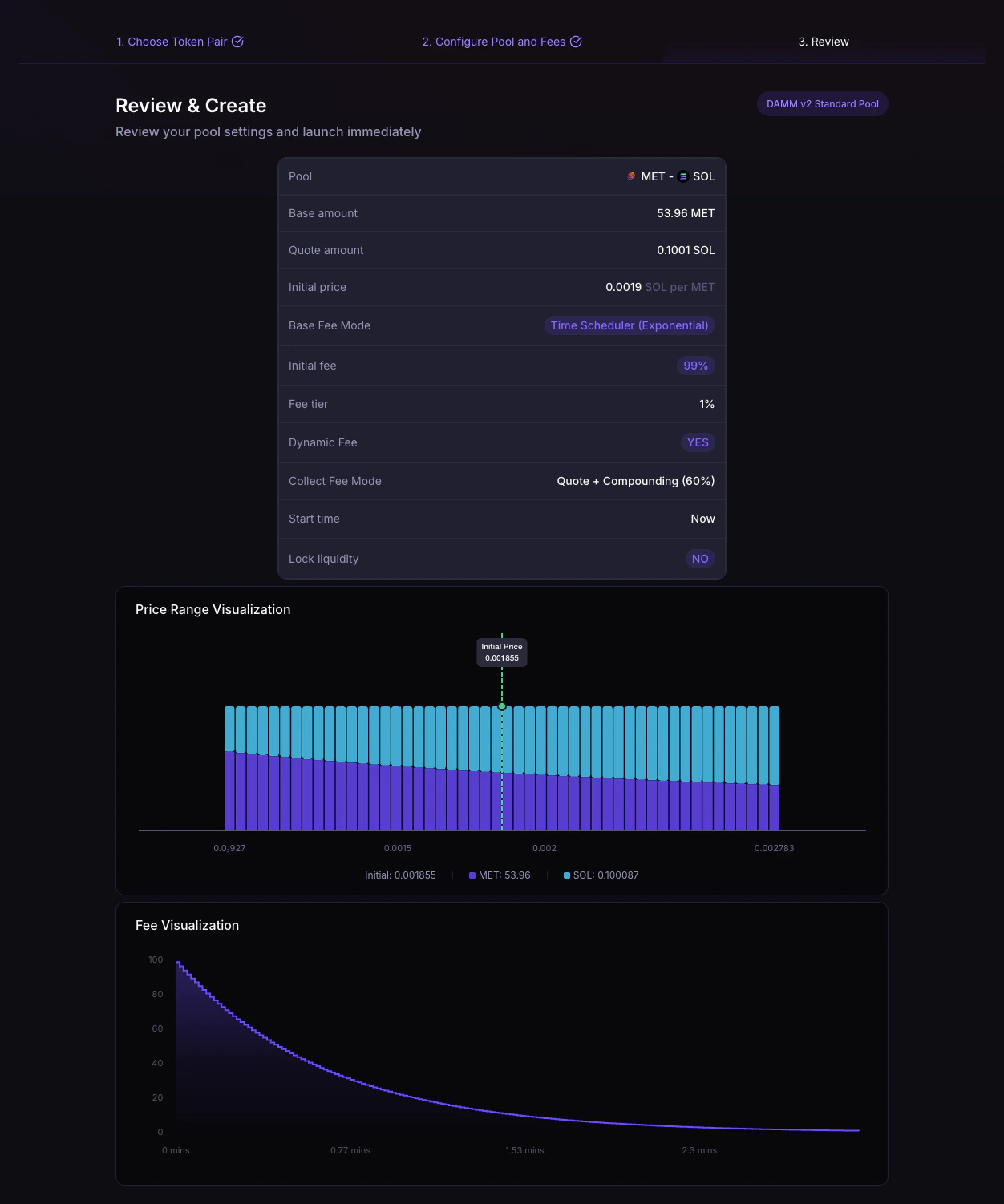
- Pool pair
- Base amount
- Quote amount
- Initial price
- Base Fee Mode
- Initial fee, when applicable
- Fee tier
- Dynamic Fee
- Collect Fee Mode
- Start time
- Lock liquidity setting
- Pool creation cost, including rent and transaction fees, excluding deposited liquidity
Creating a DAMM v2 Launch Pool
Anyone can create a DAMM v2 Launch pool here: https://meteora.ag/create/dammv2/launch1
Select your tokens
Select the trading pair for the DAMM v2 Launch Pool.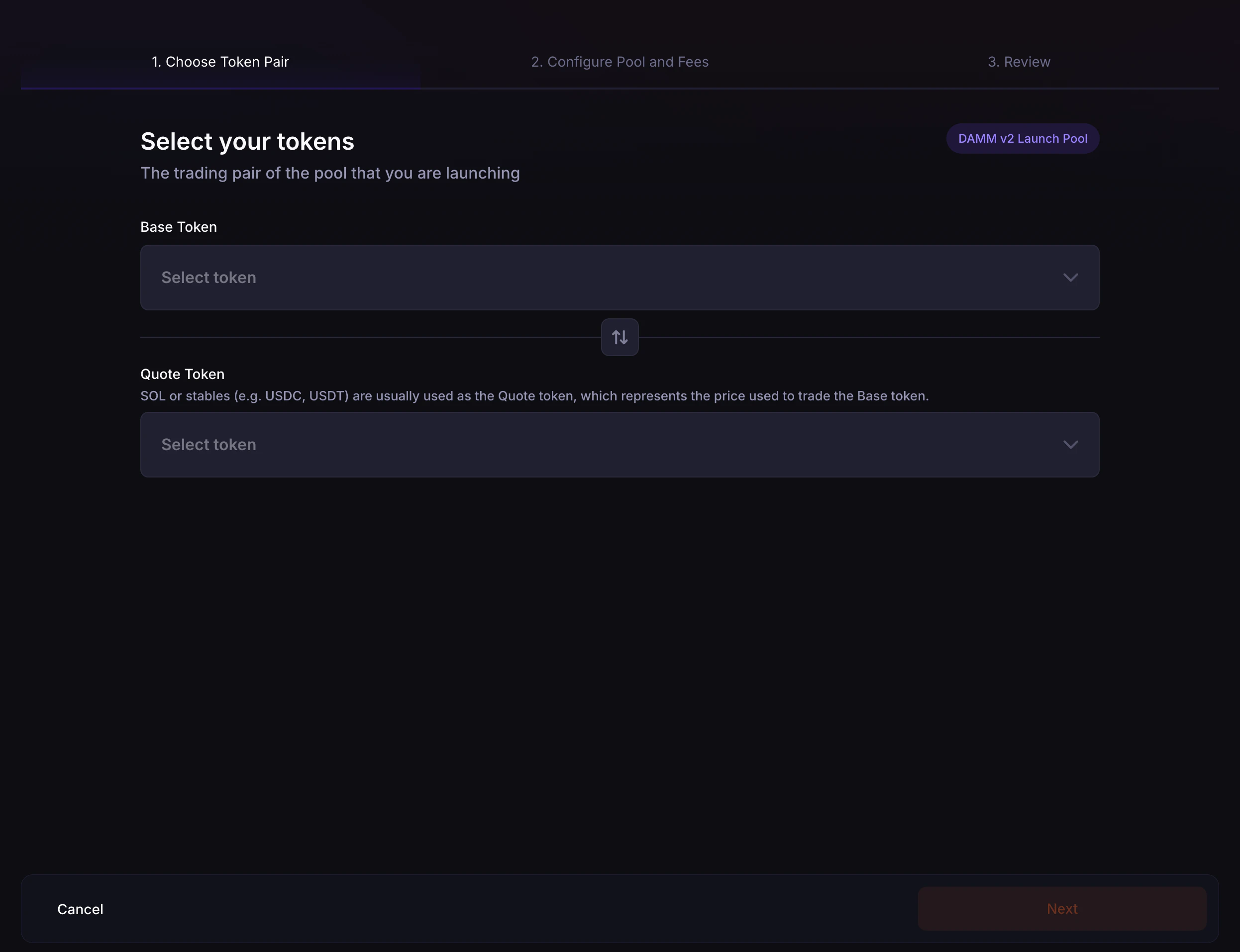
- Base Token: The token you are launching or depositing into the pool.
- Quote Token: The token used to price the Base token. SOL or stables such as USDC and USDT are usually used as the Quote token.
- Use the swap button if you need to switch the Base and Quote token order.
Some Token 2022 tokens or extensions may be unsupported for DAMM v2 pool creation. If a selected token is not eligible, Meteora will show a warning before you continue.
Meteora also checks whether a DAMM v2 pool with the selected settings already exists. If it does, you should deposit liquidity into the existing pool instead.
2
Configure Pool
Set the pool setup, fee configuration, trading start time, and liquidity lock preference.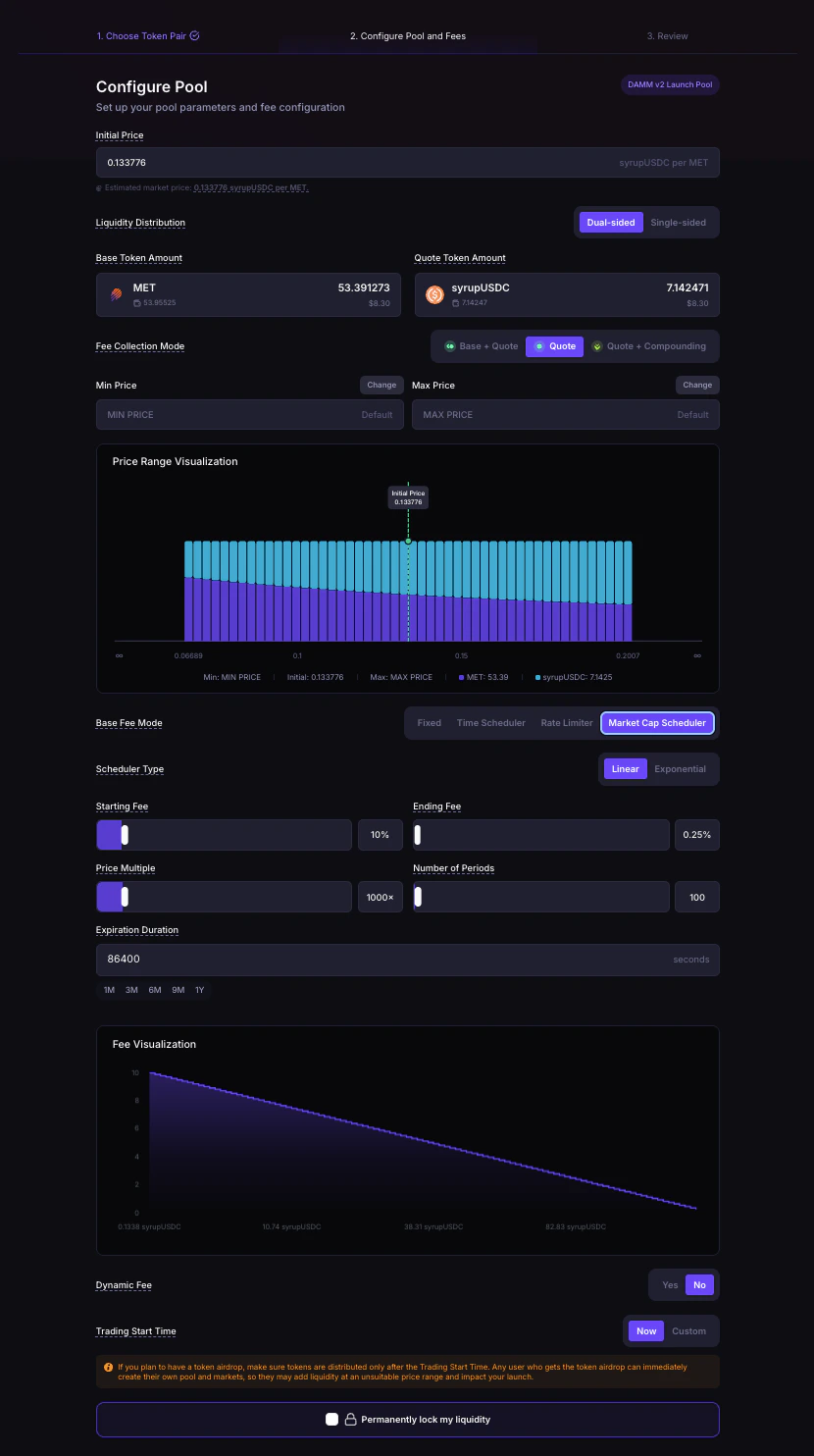
- Initial Price: The pool’s starting price, shown as Quote token per Base token.
- Liquidity Distribution: Choose Dual-sided to deposit both Base and Quote tokens, or Single-sided to deposit only the Base token.
- Base Token Amount and Quote Token Amount: Enter the liquidity amounts to deposit. Single-sided pools do not require a Quote token deposit.
- Fee Collection Mode: Choose Base + Quote, Quote, or Quote + Compounding. Single-sided liquidity is not compatible with Quote + Compounding.
- Compounding Fee %: If Quote + Compounding is selected, set the percentage of trading fees reinvested into pool liquidity.
0leaves the LP fee claimable in the quote token. The pool stays in compounding mode. - Min Price and Max Price: Configure the price range. For single-sided pools, the lower bound is fixed to the Initial Price and you only set the Max Price.
- Base Fee Mode: Choose Fixed, Time Scheduler, or Market Cap Scheduler. New pools cannot use Rate Limiter.
- Scheduler Type: For Time Scheduler or Market Cap Scheduler, choose Linear or Exponential.
- Fixed Base Fee: For Fixed mode, set the constant swap fee charged on every trade.
- Time Scheduler: Set the Starting Fee, Ending Fee, Total Duration, and Number of Periods.
- Rate Limiter: Not available for a new pool.
create_config,initialize_pool,initialize_pool_with_dynamic_config, andinitialize_customizable_poolreject it. Existing rate-limiter pools can still be traded. - Market Cap Scheduler: Set the Starting Fee, Ending Fee, Price Multiple, Number of Periods, and Expiration Duration.
- Dynamic Fee: Enable or disable the volatility-based fee component.
- Trading Start Time: Choose Now to start trading immediately after creation, or Custom to schedule a future start time.
- Permanently lock my liquidity: Select this only if you want the deposited liquidity to be permanently locked.
Meteora shows price range and fee previews, plus a pool creation cost breakdown, before you continue.
3
Review & Create
Review your DAMM v2 Launch Pool settings before launching the pool.The review step shows: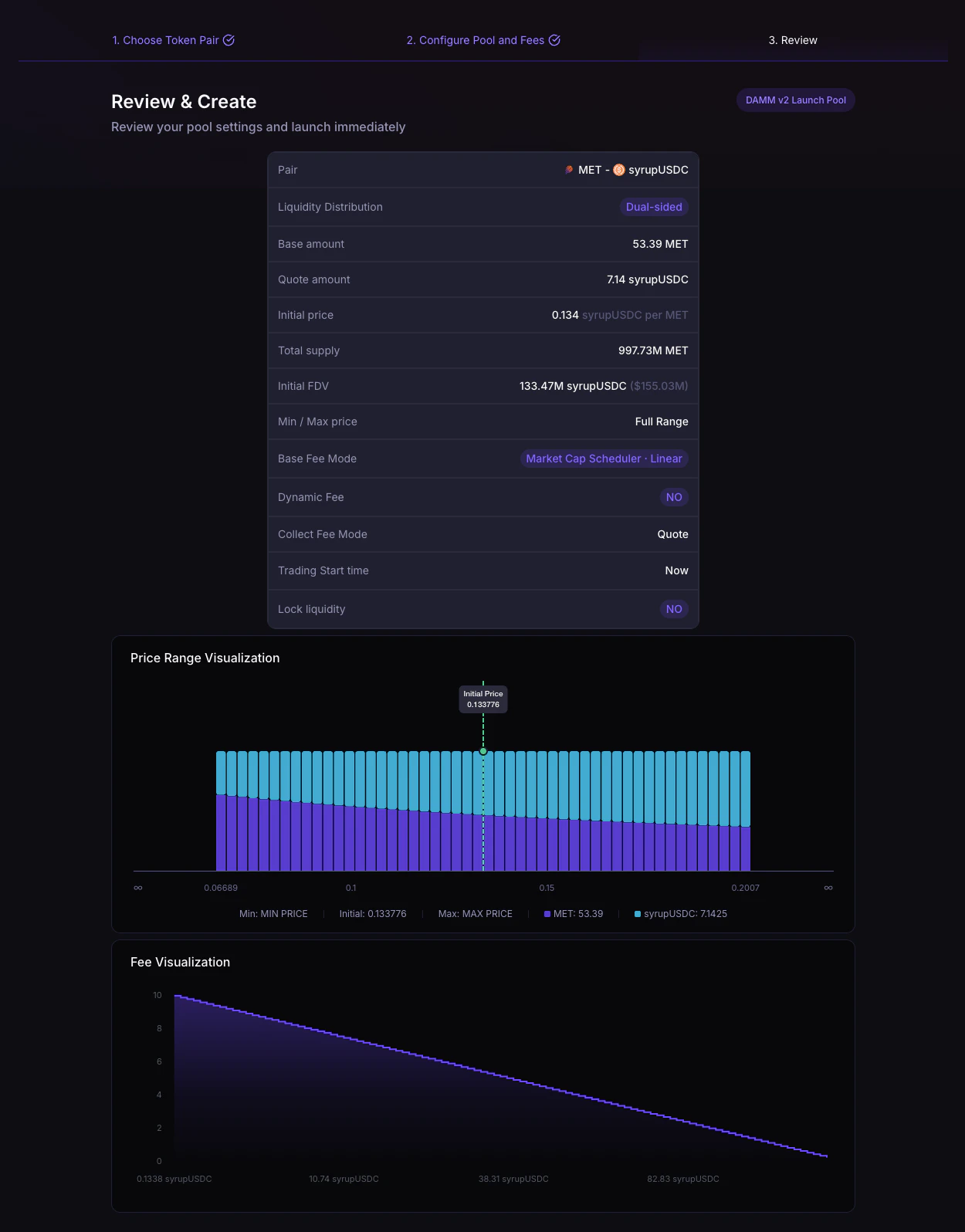
- Pair
- Liquidity Distribution
- Base amount
- Quote amount, if dual-sided
- Initial price
- Total supply
- Initial FDV
- Max price, or Min / Max price for dual-sided pools
- Base Fee Mode
- Base fee, when using Fixed mode
- Dynamic Fee
- Collect Fee Mode
- Trading Start time
- Lock liquidity setting
- Pool creation cost, including rent and transaction fees, excluding deposited liquidity